WAF — Web Application Firewall
WAF — Web Application Firewall
A Web Application Firewall inspects every HTTP request before it reaches your website and stops common attacks such as SQL injection, cross-site scripting (XSS) and file inclusion. VinzaPanel's WAF app is the panel front end for ModSecurity v3 with the OWASP Core Rule Set (CRS).
Install
- Click Vinza Store in the top bar and open WAF (ModSecurity).
- Click Install. The installer detects your active web server and installs the matching ModSecurity connector plus the OWASP CRS:
libapache2-mod-security2for Apache2, or the ModSecurity module for Nginx. - Open Security → WAF (
/apps/waf/).
The WAF starts in Log Only mode (ModSecurity DetectionOnly): attacks are recorded but nothing is blocked yet. phpMyAdmin (/phpmyadmin/) and webmail are always kept in log-only mode, because their normal requests contain SQL and HTML that the CRS would read as attacks.
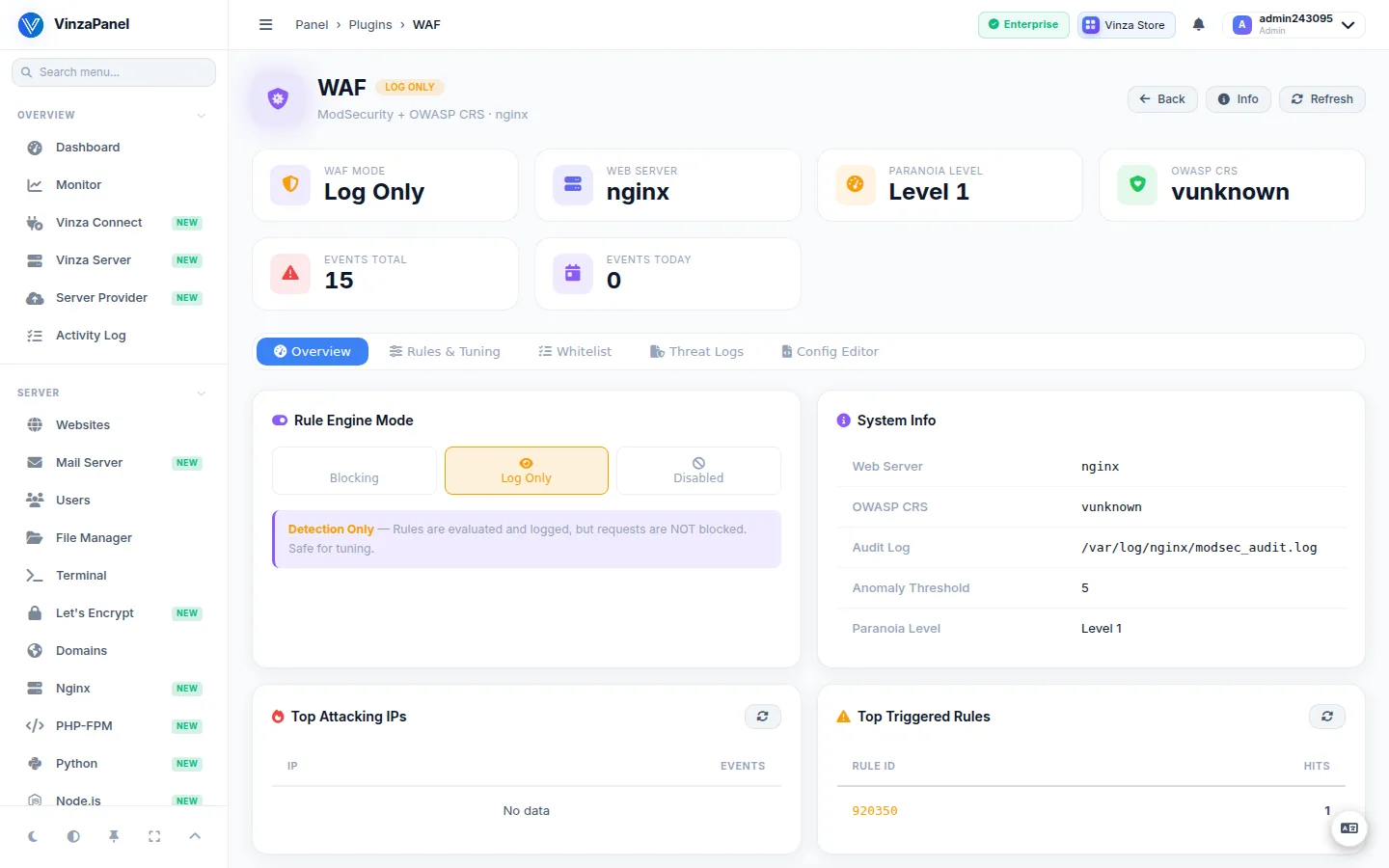
Choose the engine mode
On the Overview tab, under Rule Engine Mode, pick the server-wide mode:
| Mode | Effect |
|---|---|
| On (protect) | Requests that cross the anomaly threshold are blocked |
| Log Only | Requests are inspected and logged, never blocked |
| Off (disable) | No inspection |
Some legitimate applications trigger CRS rules (for example rich-text editors that post HTML). Run in Log Only for a while, check the Threat Logs tab for false positives, tune them, and only then switch to On.
Per-site override
The Per-site WAF override card lets you give one domain its own mode — for instance Log Only for a single site that cannot tolerate blocking yet — while every other site keeps the server-wide mode. Use Reset to server-wide mode to remove the override. This is managed centrally; no .htaccess is involved.
Tune the rules
On the Rules & Tuning tab:
- CRS Paranoia Level — L1 — Minimal (low false positives, recommended to start), L2 — Standard, L3 — High and L4 — Extreme (maximum protection, high risk of false positives).
- Anomaly Score Threshold — each matching rule adds to a request's score; when the inbound score reaches the threshold, the request is blocked. A lower threshold is stricter and blocks requests sooner.
Fix false positives
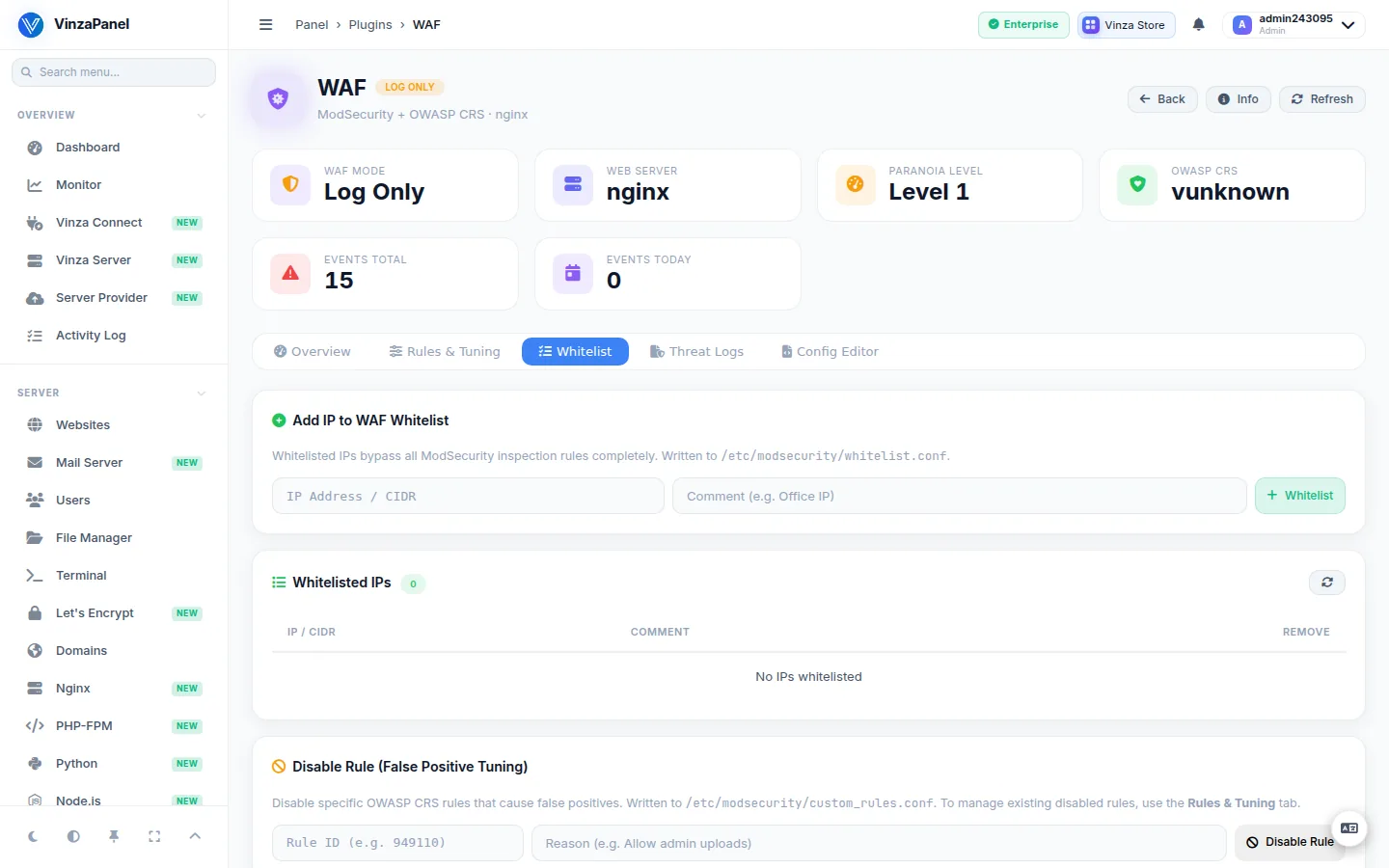
On the Whitelist tab:
- Disable Rule (False Positive Tuning) — enter the Rule ID that keeps blocking a legitimate request (you'll find it in the Threat Logs) and a Reason, so you remember later why it was turned off. Re-enable brings it back.
- Add IP to WAF Whitelist — an IP or CIDR range with a comment (e.g. Office IP). Whitelisted IPs bypass all ModSecurity inspection, so use this sparingly.
Watch the logs
The Threat Logs tab reads ModSecurity's audit log and shows recent security events (time, source IP, method, URI, rule and message), the top triggered rules and the top attacking IPs. Click Load to fetch them.
The audit log itself is at /var/log/apache2/modsec_audit.log (Apache2) or /var/log/nginx/modsec_audit.log (Nginx).
Advanced: Config Editor
When the guided controls are not enough, the Config Editor tab lets administrators edit the ModSecurity configuration directly and Save & Reload.
What website owners see
Hosting users get a read-only WAF page: the effective mode for each of their domains, whether it is overridden, and recent blocked attacks aimed at their domains. All WAF settings stay with administrators.
Uninstalling the WAF app sets the ModSecurity engine to Off rather than leaving a half-configured firewall behind.