SSL & HTTPS with Let's Encrypt
SSL & HTTPS with Let's Encrypt
VinzaPanel issues free SSL/TLS certificates from Let's Encrypt through Certbot. Let's Encrypt is a built-in app, so it is always available. When a certificate is obtained for a website, the panel also rewrites that site's vhost so it serves the certificate on port 443 and redirects HTTP to HTTPS — you don't have to edit anything by hand.
Before you issue
- The domain's A record must point to this server (or to the node that hosts the site).
- Port 80 must be reachable from the internet for the HTTP challenge.
- If the domain is proxied through Cloudflare (orange cloud), switch it to DNS only while issuing, or use DNS-01 validation (below).
- For regular users, the hosting plan must allow SSL (see Hosting Plans).
The quick way: one click on the website
- Open Websites and click your domain.
- On the Overview tab, check that the DNS card says Pointed to this server.
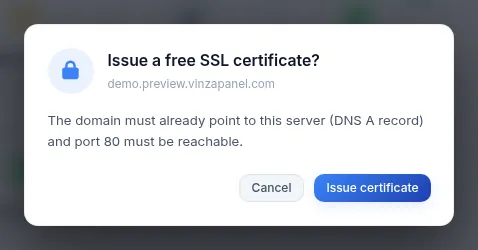
- Click the SSL card (Click to issue free SSL) and confirm Issue certificate.
Issuing can take up to two minutes. When it finishes, the SSL card shows the certificate as active with its expiry date.
More options: the Let's Encrypt page
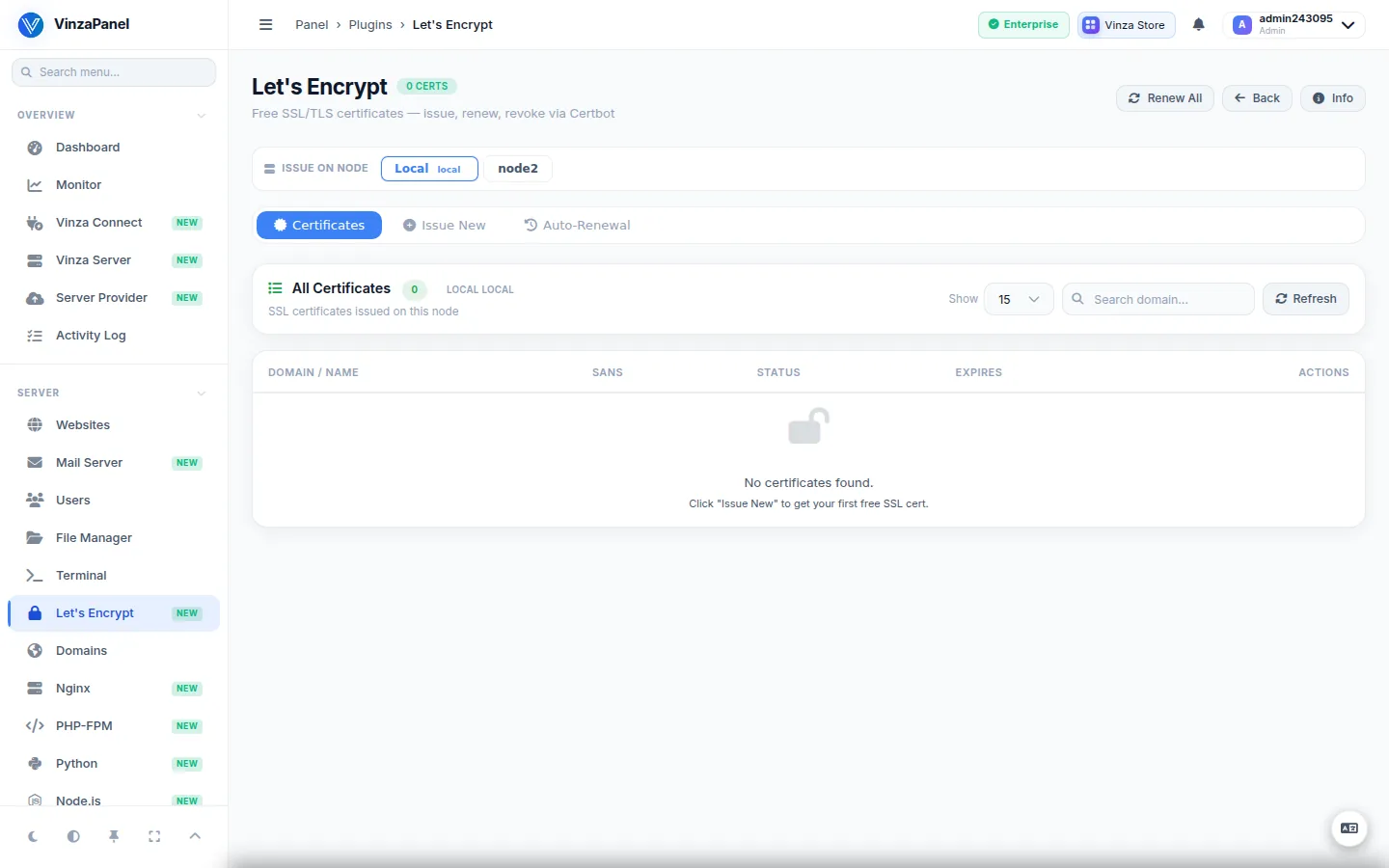
Open Server → Let's Encrypt (/apps/letsencrypt/) for full control. It lists every certificate on the server with its status and expiry, and Issue New opens a form with:
| Option | Description |
|---|---|
| Primary Domain | Pick a domain on this server; the form fills in its document root and web server. |
| Include www.domain? | Also cover www. (default yes). |
| Additional SANs | More hostnames on the same certificate, space-separated (for example, the site's domain aliases). |
| Validation | Web server authenticator (Nginx or Apache), Webroot (OpenLiteSpeed or a custom document root), Standalone (briefly stops the web server), or DNS-01 (Cloudflare). |
| Also cover *.domain | A wildcard certificate. Needs DNS-01 validation through Cloudflare. |
| Use Staging | Test mode against Let's Encrypt's staging environment; the certificate is not trusted by browsers. Use it while testing to avoid rate limits. |
The matching Certbot plugin for your web server is installed automatically when you issue. For a site on a remote node, Certbot runs on that node.
Wildcards and issuing before DNS points here
DNS-01 validation uses the API token saved in the Cloudflare app. With it you can issue a certificate before the domain points to this server, and you can issue wildcard (*.example.com) certificates. The domain's DNS must be hosted at Cloudflare.
Renewal
Certbot checks certificates every 12 hours and renews those expiring within 30 days — nothing to do on your side. The Auto-Renewal card shows the timer status, and Test Renewal runs a dry run whose output appears in the console at the bottom of the page.
Because Certbot does not report a failed renewal, VinzaPanel adds a daily Expiry Alerts check (/etc/cron.d/vinza-letsencrypt). It warns with a panel notification and, optionally, an email when a certificate enters the warning window. Set the hour and the email address in the Expiry Alerts card and click Save.
The daily expiry check covers certificates on the panel host only, not on remote nodes. A certificate that is still within 30 days of expiry means renewal is not succeeding — check the Auto-Renewal status.
Revoking a certificate
Use Revoke & Delete next to a certificate. This invalidates it immediately and the site loses HTTPS until a new certificate is issued.
Bought or self-signed certificates
For a certificate from a commercial CA, or a self-signed one for internal or staging sites, install the SSL Manager app from the Vinza Store. You paste the certificate, private key and optional CA chain; it validates them (key matches, domain covered) before installing, and can also generate a CSR or a self-signed certificate (1–3650 days). Custom certificates are not renewed automatically — replace them yourself before they expire. SSL Manager will not install over a domain that Let's Encrypt already manages; revoke that certificate first.
Troubleshooting
| Problem | Fix |
|---|---|
| DNS card says Points elsewhere or Not resolving yet | Fix the A record and wait for DNS to propagate, or use DNS-01 through Cloudflare. |
| Proxied via Cloudflare — origin hidden | Set the record to DNS only while issuing, or use DNS-01. |
| Issuing again right after a failure is refused | There is a 90-second cooldown per domain to protect you from Let's Encrypt rate limits. Wait and retry. |
| Challenge fails | Make sure port 80 is open in the firewall and at your cloud provider. |