Task Manager (process viewer)
Task Manager (process viewer)
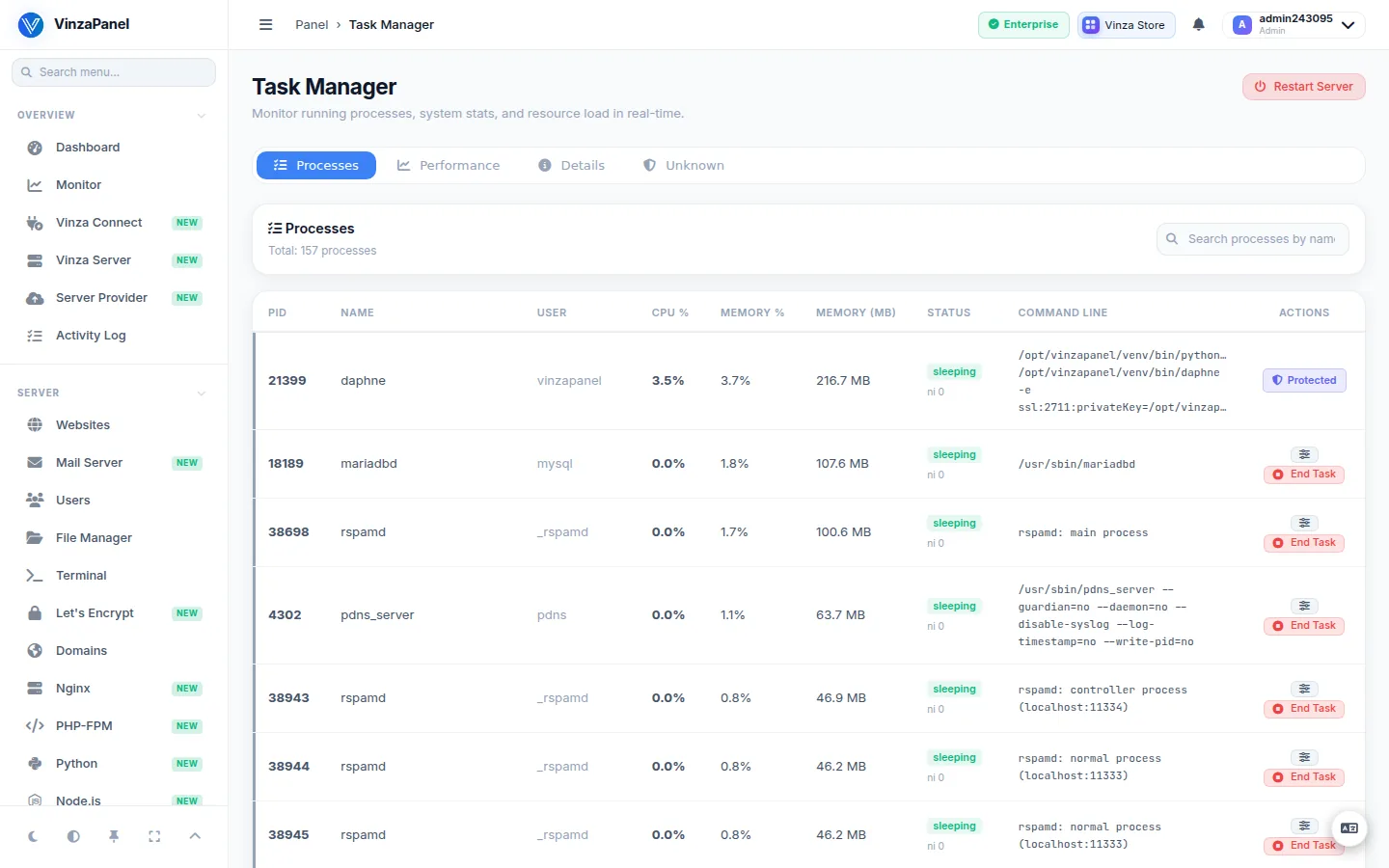
Task Manager is a browser version of top: it shows what is running on the server and how busy it is, and lets you stop a runaway process. It is an optional app — tick it in the first-login setup wizard or install it later from the Vinza Store. It then appears under Management → Task Manager (/apps/taskmanager/).
Looking for scheduled jobs? Those are on the Cron Jobs & Scheduled Tasks page (Cron Manager and Scheduler). For live charts of CPU, RAM, disk and network, use Overview → Monitor.
What it shows
- Performance — CPU, memory, disk and network counters, uptime, processor cores and operating system.
- Processes — PID, user, CPU %, memory %, memory in MB, status, nice value and command line, sorted by CPU. Search by name or PID.
- Unrecognized processes — a quick scan that flags processes whose executable looks out of place: started from a temporary directory, deleted from disk while running, or not part of any installed system package. Each flag has a reason and a Low / Medium / High severity. Treat it as a pointer for review, not as proof of compromise.
Actions
- End Task — stops a process.
- Change priority (nice) — set a nice value from -20 (highest priority) to 19 (lowest).
- Restart Server (administrators) — reboots the whole server. All websites, databases and the panel itself are briefly unavailable.
The panel's own core processes (agent, web process and background worker) are marked Protected and cannot be ended or reniced from here.
Hosting users
A hosting user sees and can end only the processes running under their own Linux user, such as SSH sessions or cron jobs. Websites are served by the shared web worker, so those processes are visible to administrators only.