fail2ban Configuration
fail2ban Configuration
Fail2Ban watches service log files (SSH, web servers, mail, FTP…) for repeated failures — brute-force attempts, wrong passwords, probing — and temporarily bans the offending IP address at the firewall. Protection is organised into jails: each jail watches specific logs with its own ban rules.
The Fail2Ban app is free on every plan, including the Free plan. Install it from the Vinza Store (top bar); it then appears in the sidebar under Security → Fail2Ban (/apps/fail2ban/).
What the installer sets up
- Installs the
fail2banpackage and enables the service. - Creates
/etc/fail2ban/jail.local(only if it does not exist yet) with thesshdjail enabled and these defaults:bantime = 3600,findtime = 600,maxretry = 5. - Adds
/etc/fail2ban/jail.d/zz-vinza-sshd.localso the SSH jail also catches failures logged by newer OpenSSH versions.
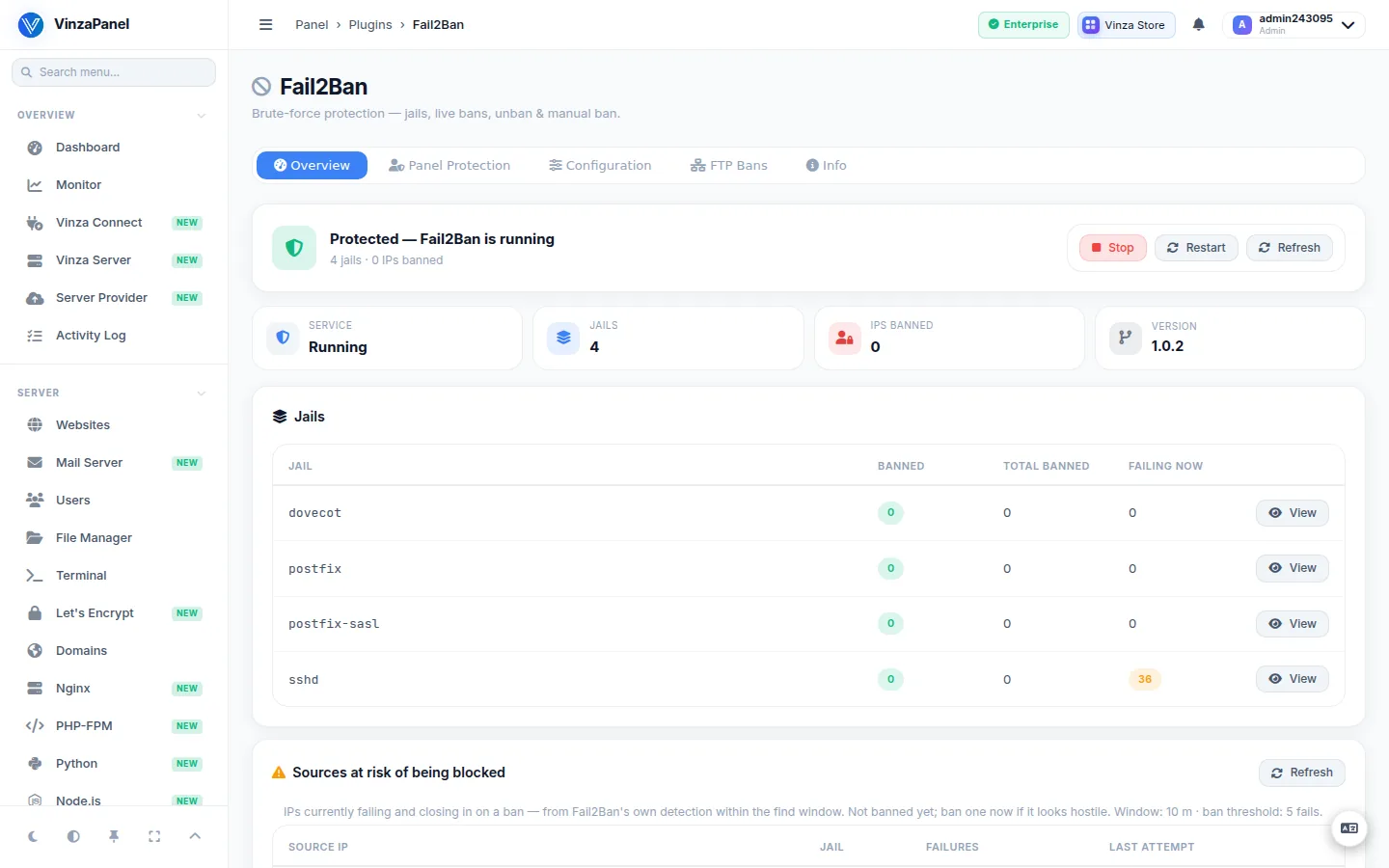
Overview: jails and bans
The Overview tab shows whether Fail2Ban is running (with Start, Stop and Restart), the active jails with their filter and ban counters, and the IPs currently banned. Click View on a jail to see its banned addresses.
- Unban IP — lift a ban, for example when a customer locked themselves out.
- Ban IP — ban an address by hand. The input is checked to be a valid IP first.
Sources at risk of being blocked lists addresses that are collecting failures but have not reached maxretry yet, sorted by risk. You can ban one straight away if it looks hostile. This list is built from Fail2Ban's own log lines, so it stays empty if you raise Fail2Ban's log level above INFO (the default).
Protect the panel login
The panel already locks an account for 30 minutes after 5 failed logins and throttles repeated failures from one IP. Panel Protection adds a firewall-level ban on top of that:
- Open the Panel Protection tab.
- Click Enable under Protect Panel Login.
This installs a dedicated vinzapanel jail (/etc/fail2ban/jail.d/vinzapanel.local, filter /etc/fail2ban/filter.d/vinzapanel.conf) that watches the panel's authentication log — data/logs/panel-auth.log inside the panel directory (/opt/vinzapanel by default) — and bans on the panel port. The tab shows separately whether the jail is configured and whether Fail2Ban has actually loaded it.
Add your own IP to the whitelist (Configuration tab) so a mistyped password can't lock you out of the panel at the firewall.
Default ban policy
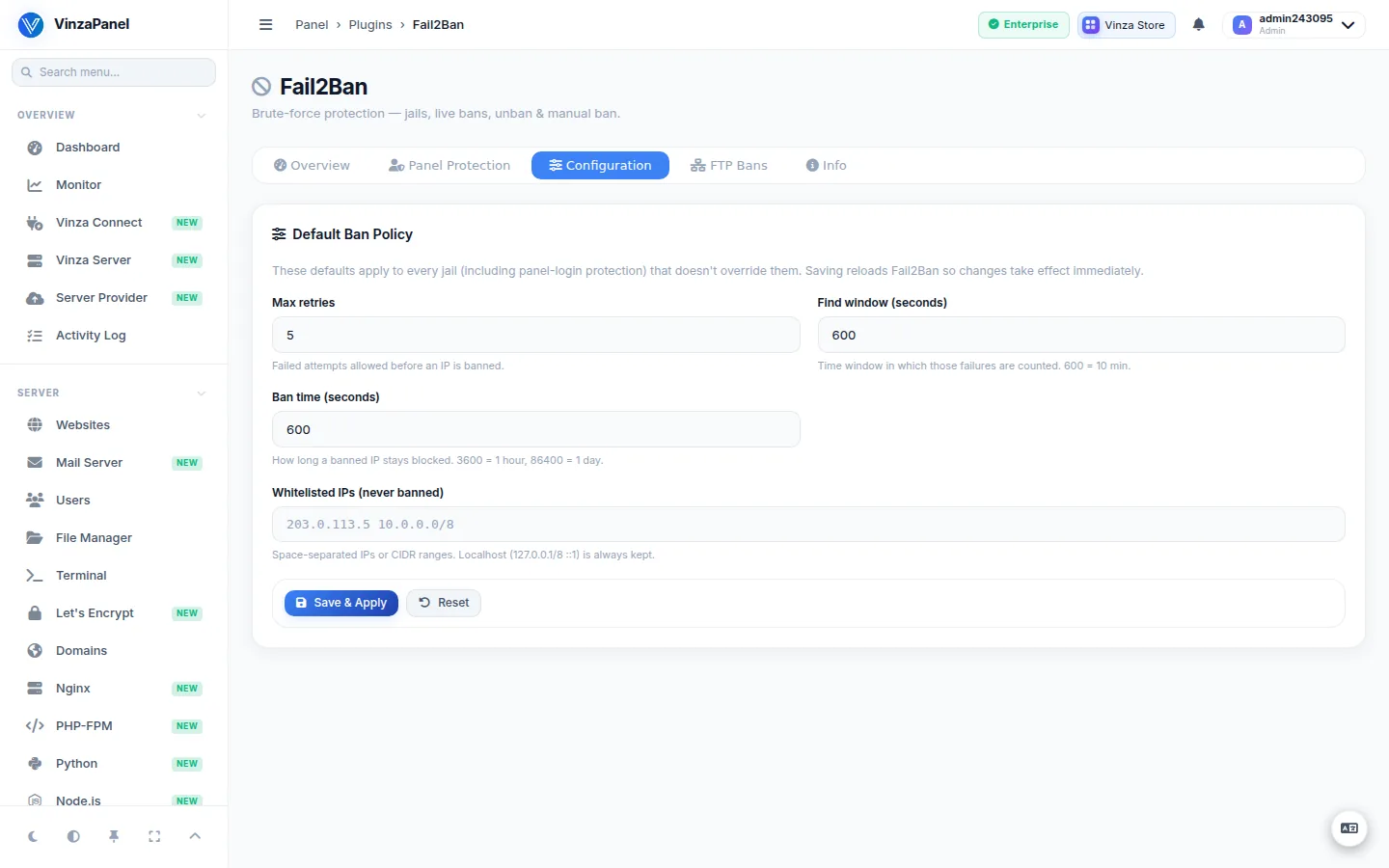
On the Configuration tab, under Default Ban Policy, you can change the defaults shared by every jail that does not override them:
| Setting | Meaning |
|---|---|
| Ban time (seconds) | How long a banned IP stays blocked (3600 = 1 hour, 86400 = 1 day). Minimum 60. |
| Find window (seconds) | The time window in which failures are counted (600 = 10 minutes). Minimum 10. |
| Max retries | Failed attempts allowed before an IP is banned. Minimum 1. |
| Whitelisted IPs (never banned) | Space-separated IPs or CIDR ranges. Localhost (127.0.0.1/8 ::1) is always kept. |
Click Save & Apply: the values are written to /etc/fail2ban/jail.d/vinza-defaults.local and Fail2Ban reloads immediately. To add or tune individual jails, edit the local configuration file shown on the same tab and restart the service.
FTP protection
The FTP Bans tab lists IPs banned for repeated failed FTP logins. If no FTP jail is active, click Enable FTP protection to turn on Fail2Ban's vsftpd jail (written to /etc/fail2ban/jail.d/vinza-ftp.local). Make sure vsftpd is installed and logging.
Command line
The usual fail2ban-client commands work as root:
# Status of the SSH jail and its banned IPs
sudo fail2ban-client status sshd

# Unban an IP from one jail
sudo fail2ban-client set sshd unbanip 192.0.2.55The page reads jails and bans through the VinzaPanel agent. If the vinza-agent service is down, jail data cannot be shown — see Service Recovery.