First Login & Panel Setup
First Login & Panel Setup
After the installer finishes you have three things: a login URL, an administrator username and a password. This page walks you through signing in for the first time and the setup wizard that installs your web server and core apps.
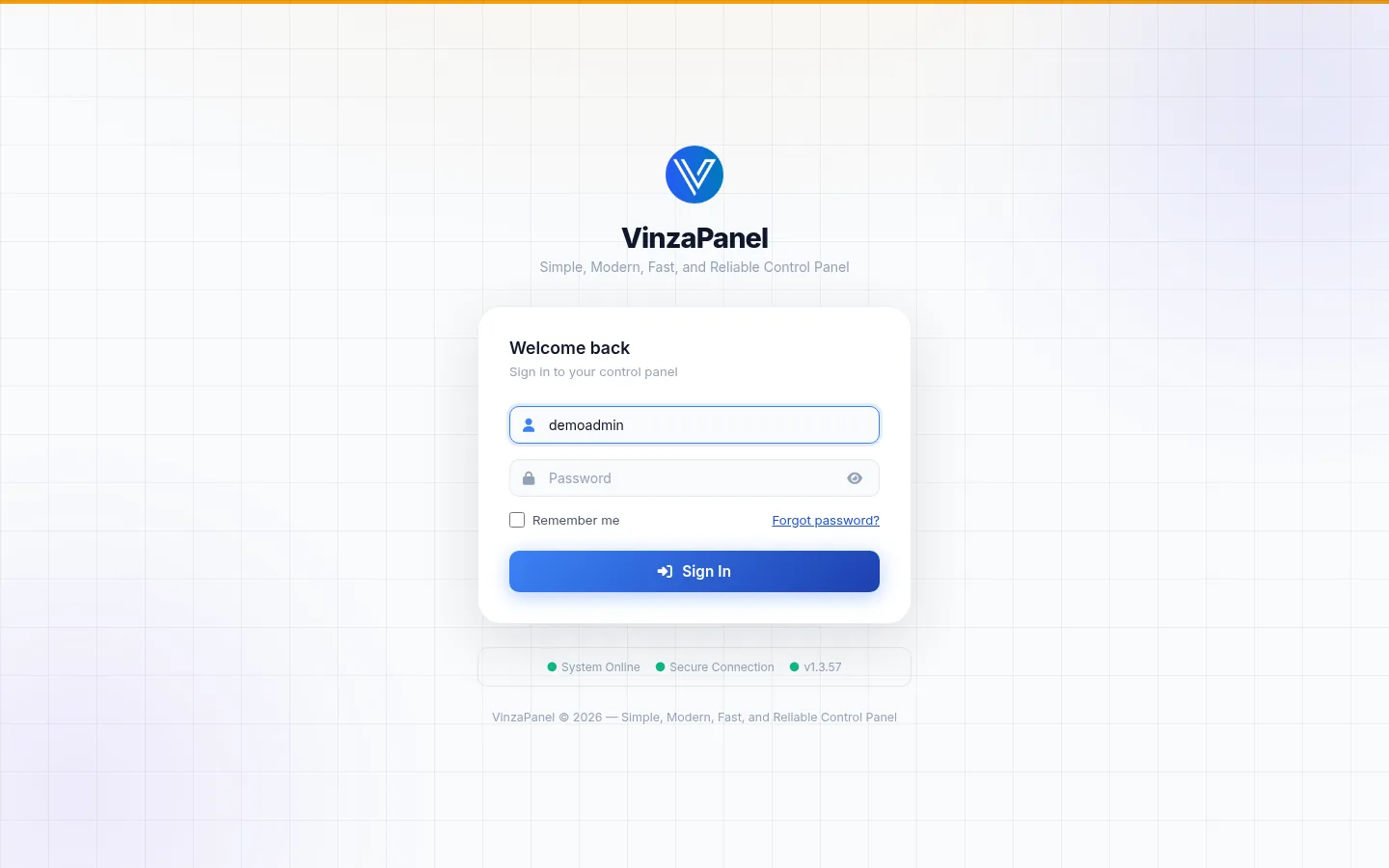
Step 1: Open the admin login page
Open the URL from the installer summary in your browser. It looks like this:
https://YOUR_SERVER_IP:2711/<secret>/login/The <secret> part is a random 8-character path created during installation. Administrator accounts can only sign in here.
There is also a public login page at https://YOUR_SERVER_IP:2711/login/. It is meant for your customers (accounts with the user role) and refuses administrator accounts — without revealing the secret path. If you lost the admin address, run sudo vinzapanel --mode info on the server.
Step 2: Accept the certificate warning
The panel serves HTTPS on port 2711 with a self-signed certificate, so your browser shows a security warning the first time. This is expected: choose Advanced → Proceed (the wording depends on your browser).
Page will not load at all? Make sure port 2711/tcp is open in your cloud provider's firewall or security group. The installer already opens it in UFW.
Step 3: Sign in
Enter the username (admin followed by 6 digits) and the password printed by the installer. After a few failed attempts a captcha is added to the form, and repeated failures lock the IP address out for a while.
Step 4: The setup wizard
On your first sign-in the Initial Configuration Wizard opens. It has three steps: Welcome, Apps and Install. You can switch the wizard between English and Indonesian and between dark and light mode.
Welcome — Server Identity (optional)
The wizard detects your server's public IP and suggests values for:
- Domain (FQDN) — a full hostname such as
panel.example.com - Public IP
- Nameserver 1 and Nameserver 2 — e.g.
ns1.example.com, used when this server hosts DNS for your domains
Leave any of them blank to skip; you can set them later in Administration → Panel Settings.
Apps — choose the web server and apps
Pick one web server:
| Web server | Good to know |
|---|---|
| Apache (selected by default) | Native .htaccess, broadest compatibility |
| Nginx | Lightweight and fast; .htaccess does not apply |
| OpenLiteSpeed | Event-driven, honours .htaccess, built-in cache |
Below that, Required Apps are always installed (the core stack: PHP-FPM, MariaDB, Let's Encrypt, phpMyAdmin, Redis, FTP Manager, Git Manager and others), and you can click any Optional Apps you want as well. The list is loaded from the Vinza Store; if the store cannot be reached, a default list is shown. Everything you skip here can be installed later from the Vinza Store.
Install — licence and installation
The last step shows a summary. If you have a licence key, enter it and click Activate; otherwise the panel runs on the Free plan (administrator account only), and you can activate a licence any time in Administration → Panel License.
Start the installation and keep the page open: apps are installed one after another in the background. If some components fail, the wizard lists them and offers Retry failed (or Finish anyway).
Do not close or reload the page while the setup is running.
Step 5: Secure your account
- Open Profile from the user menu (top right) and change the generated password if you want one you can remember.
- Turn on two-factor authentication (authenticator app or passkey) in your profile — see Two-Factor Authentication.
What next?
- Panel Interface Overview — find your way around
- Creating Virtual Hosts — add your first website
- Vinza Store — add more apps