Backups
Backups
The built-in backup manager makes compressed archives of websites, databases and folders, keeps them in the owner's home directory, runs them on a schedule and restores them in place with one click. Open Management → Backups in the sidebar (/backups/).
What you can back up
| Backup type | What the archive holds | Who can use it |
|---|---|---|
| User Directory | A user's whole home directory (/home/<user>), minus its backups folder | Administrators only |
| Website and DB | The website's files plus every MySQL/MariaDB database linked to it, in one archive | Everyone (own websites) |
| Only Website | The website's document root | Everyone (own websites) |
| Only Database | A consistent mysqldump of one database, gzip-compressed | Everyone (own databases) |
| Custom Folder | Any folder you choose | Users: folders inside their home; administrators: any folder |
PostgreSQL databases are not included (a Website and DB archive lists them as skipped). Back them up with the PostgreSQL app — see Backup & Restore Databases.
Make a backup now
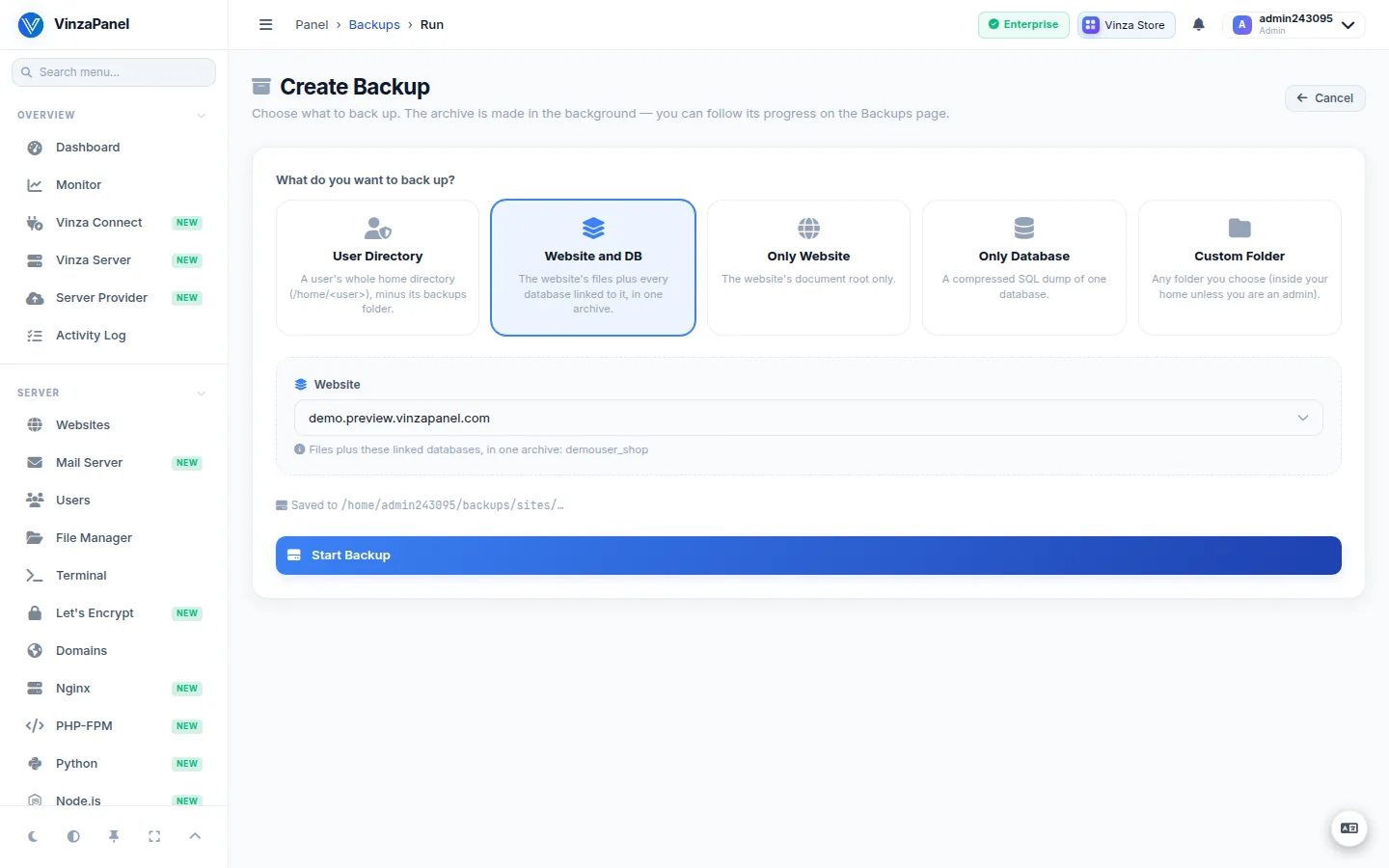
- On Backups, click Create Backup.
- Pick a Backup type tile and choose the website, database, user or folder.
- Click Start Backup.
The backup is queued and made in the background, so you can leave the page. The list shows Queued, then Running with a progress bar, then Success or Failed with the reason. A queued backup can still be cancelled.
Where archives are stored
Every user keeps their own archives in their home directory:
/home/<user>/backups/<type>/<source>/<source>_<YYYYmmdd-HHMMSS>.tar.gz

# type folders: websites, sites (Website and DB), databases (.sql.gz), folders, users
Use Download to save an archive to your computer, or Delete to remove it. Each user keeps at most 15 local archives; when a new one is made, the oldest beyond that limit are removed (never one that is being restored or still uploading off-site).
Automatic backups
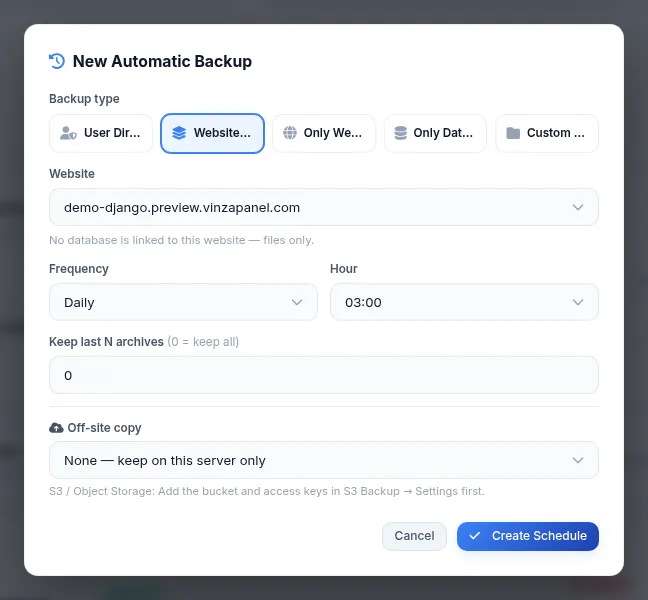
- In Automatic Backups, click New Schedule.
- Choose the backup type and source.
- Set the Frequency — Daily, Weekly (pick the day), Monthly or Yearly — and the Hour (server time).
- Set Keep last N archives (
0= keep all). Older automatic archives of that source are removed after each run. - Optionally choose an Off-site copy destination (see Off-site Backups).
- Click Create Schedule.
Each schedule shows its last and next run. You can Run now, Pause/Resume, Edit or delete it. The source of a schedule cannot be changed — create a new schedule for another source.
Restore a backup
Click Restore on a successful backup and confirm. The restore is queued and runs in the background, and it writes back to the original location:
- Website / Folder / User Directory — files in the archive overwrite the current ones; files added since stay.
- Only Database — each table in the archive replaces the current one; tables created since stay.
- Website and DB — files are extracted over the current ones and the tables of the linked databases are replaced. You can restore both parts or only the files or only the databases.
A restore overwrites current data. If you are not sure, make a fresh backup of the same source first. The website or database must still exist, and only administrators can restore a User Directory.
Backups on the server do not protect you if the server itself is lost. Add an off-site copy to your schedules — see Off-site Backups.