Users & Roles
Users & Roles
Every person who signs in to VinzaPanel has a panel user. Hosting customers are users too: each one gets its own Linux account, home directory and resources. This page covers creating users, roles and permissions, suspending and terminating accounts, and signing in as a customer to help them.
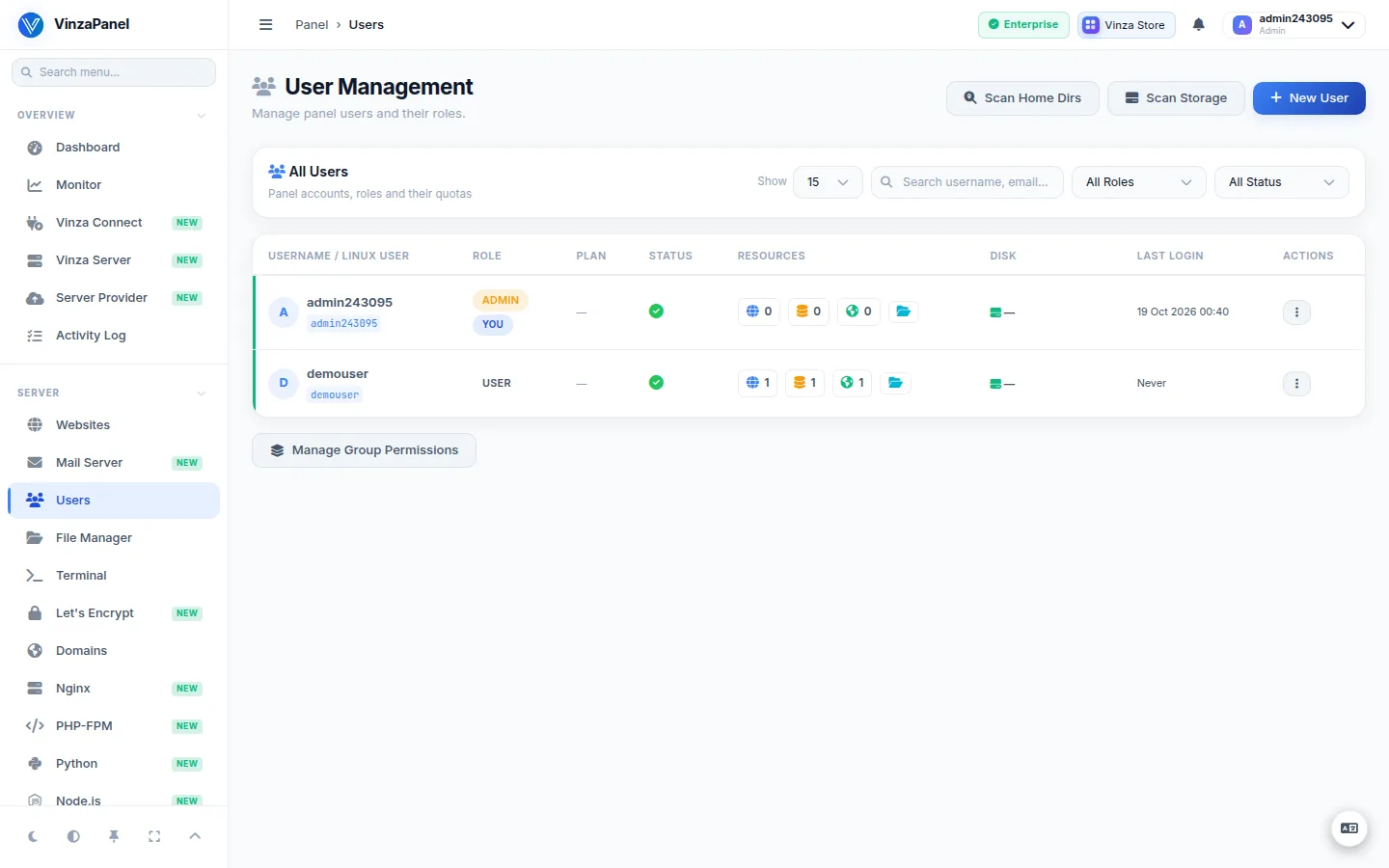
Manage users at Server → Users. The page lives under your panel's secret admin path (/<secret>/users/).
Roles
| Role | Who it is for | Where they sign in |
|---|---|---|
| Super Admin | Full control of the panel and server | https://IP:2711/<secret>/login/ |
| Admin | Operators who manage the server and customers | https://IP:2711/<secret>/login/ |
| User | Hosting customers — they see only their own websites, databases, domains and files | https://IP:2711/login/ |
The public /login/ page refuses administrator accounts; admins always use the secret login URL printed by the installer.
You can only assign roles up to your own: an Admin can create Admins and Users, but not Super Admins, and cannot edit, suspend or delete a Super Admin.
Groups and permissions
Access is role-based. Each role maps to a group — panel_admin for Admin and panel_user for User; Super Admins have every permission. Go to Administration → Groups to change what a role can access, or use Permissions on a single user to grant or revoke individual panel permissions for that account only.
Create a user
- On Server → Users, click New User.
- Enter a Username (it cannot be changed later — it is permanently tied to the Linux system account), email, first and last name.
- Type a Password twice, or click Generate safe password.
- Choose the Role and a Hosting Plan. No Plan means no limits are enforced; see Hosting Plans.
- If you have connected other servers, choose the Server for a hosting account (role User). Its Linux user, websites and databases are created there. See Vinza Server.
- Click Create User. The confirmation shows the panel username, the Linux user and the system password — copy them for your welcome email.
Every new account gets a Linux user with the same password and MariaDB access. If a user has no home directory or Linux user (for example after an import), open it and use Set Up Home Directory or Create Linux User.
Your licence decides how many active panel users you can have. The Free plan allows only the administrator account. When you approach or reach the limit, the Users page tells you and links to Panel License.
Edit a user
Click Edit on a user to change email, name, role, hosting plan or password (leave the password blank to keep it). The Account Status toggle switches an account between active and inactive; you can't change your own status. Re-activating an account counts against your licence limit.
Suspend and unsuspend
Suspend an account when, for example, an invoice is unpaid:
- Open the user and find Suspension.
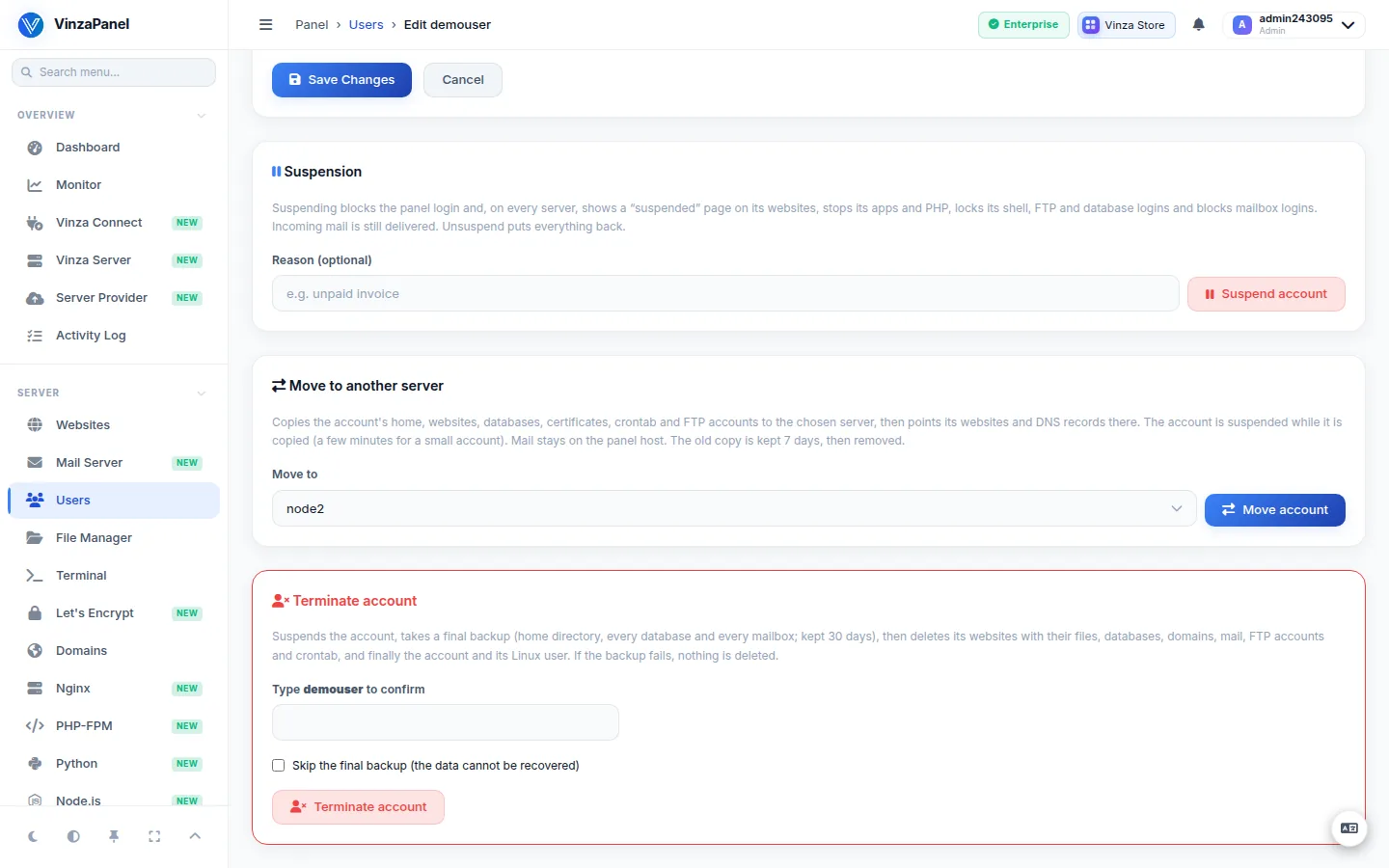
- Optionally enter a Reason (e.g. unpaid invoice) and click Suspend account.
Suspending blocks the panel and API login and, on every server that holds the account's resources:
- its websites show a “suspended” page (HTTP 503) and certificates still renew; on OpenLiteSpeed the sites are taken offline instead;
- its apps and PHP-FPM pools are stopped;
- its shell (SSH), FTP and database logins are locked and its processes stopped;
- mailbox logins are refused, but incoming mail is still delivered.
Unsuspend puts back exactly what was changed. If a step fails, the page lists it — use Retry suspend.
Terminate an account
Terminate account removes a customer completely. Type the username to confirm. The panel then, in the background:
- suspends the account;
- takes a final backup of its home directory, every database and every mailbox (kept 30 days);
- deletes its websites with their files, databases, domains, mail, FTP accounts and crontab;
- deletes the panel user and its Linux user.
If the backup fails, nothing is deleted. A failed job can be resumed with Retry termination. You can tick Skip the final backup, but then the data cannot be recovered. Recent terminations are listed on the Users page under Account terminations (last 30 days).
Delete on the Users page is only for accounts that own no websites, databases or domains. For a hosting customer, always use Terminate account so their resources are backed up and removed properly. Terminating an account whose websites or databases live on another server is not supported yet.
Login As (impersonation)
To see the panel exactly as a customer does, open their user and click Login As. You are signed in as that user and a banner shows Impersonating <user> with your original account. Click Exit Impersonation to return.
- Only Admins and Super Admins can do this, and only for accounts with the User role — never for other administrators or yourself.
- The customer does not receive a new-login email.
Move an account to another server
With connected servers, Move to another server on a hosting account copies its home, websites, databases, certificates, crontab and FTP accounts to another server and points its websites and DNS there. See Vinza Server for details.
Housekeeping
- Scan Storage measures every user's home directory and refreshes the Disk column.
- Scan Home Dirs finds directories in
/home/that belong to no panel user; you can compress them to.tar.gzand then delete the original.
Security tips
- Turn on two-factor authentication for every admin — see Two-Factor Authentication.
- After 5 wrong passwords an account is locked for 30 minutes.
- Review sign-ins and actions in Activity Log and Administration → Audit Log.