Off-site Backups
Off-site Backups
A backup that lives only on the server is lost together with the server. Off-site backups send a copy of your panel backups somewhere else, automatically. VinzaPanel offers three destinations, each as an app from the Vinza Store:
| Destination | App | Best for |
|---|---|---|
| Google Drive | Google Drive Backup (/apps/google-drive-backup/) | Each user sending copies to their own Google Drive |
| S3 / Object Storage | S3 Backup (/apps/s3-backup/) | Any S3-compatible bucket: AWS S3, Cloudflare R2, Wasabi, Backblaze B2, IDCloudHost, MinIO |
| Remote Backup | Remote Backup (/apps/device-backup/) | Your own Windows PC, Mac or Linux computer, even behind a router without a public IP |
After installation each app appears under Management in the sidebar.
The three apps are included with the Profesional and Enterprise plans. On the Free and Starter plans they are available per server as a paid add-on (monthly or one-time) in the Vinza Store. Uploading needs a licence that includes off-site backup; restoring does not.
Send scheduled backups off-site
Every destination plugs into the panel's own schedules, so the usual way to use them is:
- Set up the destination (see the sections below).
- Go to Backups (
/backups/) and create or edit an automatic backup. - Under Off-site copy, choose the destination and set Keep last N copies off-site (
0= keep all). - Optionally untick Keep a local copy on this server when the server lacks disk space: each archive is then deleted from the server once its off-site copy is confirmed.
Every archive the schedule makes is uploaded in the background. The Backups list shows the off-site state of each archive (queued, uploading with progress, done or failed) with Retry upload for failures.
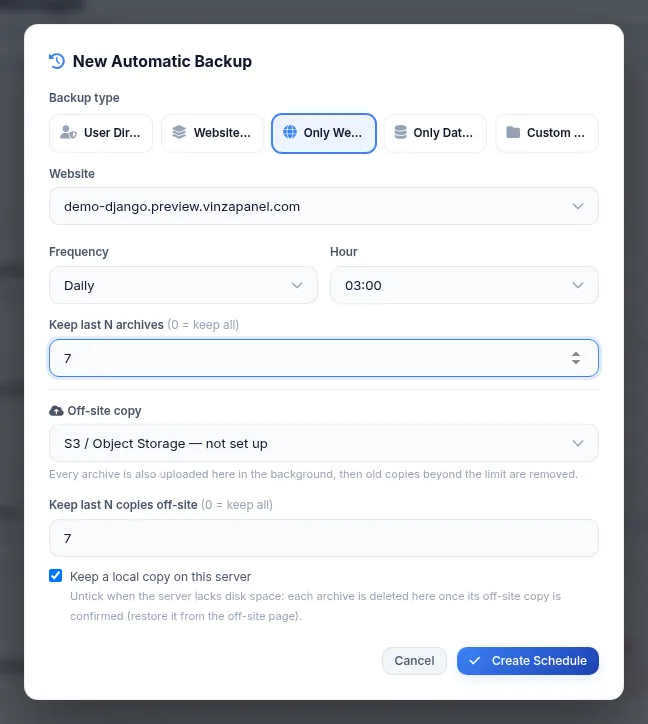
An archive kept off-site only cannot be restored from the Backups page directly. Bring it back from the destination's app first (below); it then appears on the Backups page again, ready to restore.
Google Drive
Each panel user connects their own Google Drive. The app uses the drive.file scope, so it only sees files it created, all inside a VinzaPanel Backups folder.
- An administrator uploads the
client_secretJSON of a Google Cloud OAuth 2.0 Web application as the Shared Google OAuth2 App, and registers the Authorized redirect URI shown on the page in Google Cloud Console. (Users can instead upload their own app under Your Personal Google App.) - Each user clicks Connect with Google and approves access. The refresh token is stored encrypted and can be revoked with Disconnect.
- Choose Google Drive as the off-site destination of a schedule, or queue existing backups from the app's Backups view.
Uploads are verified with an MD5 checksum. In Drive Files you can browse the folder, move files to the Drive trash and restore a file to the server; an archive restored into your backups folder shows up on the Backups page.
S3-compatible storage
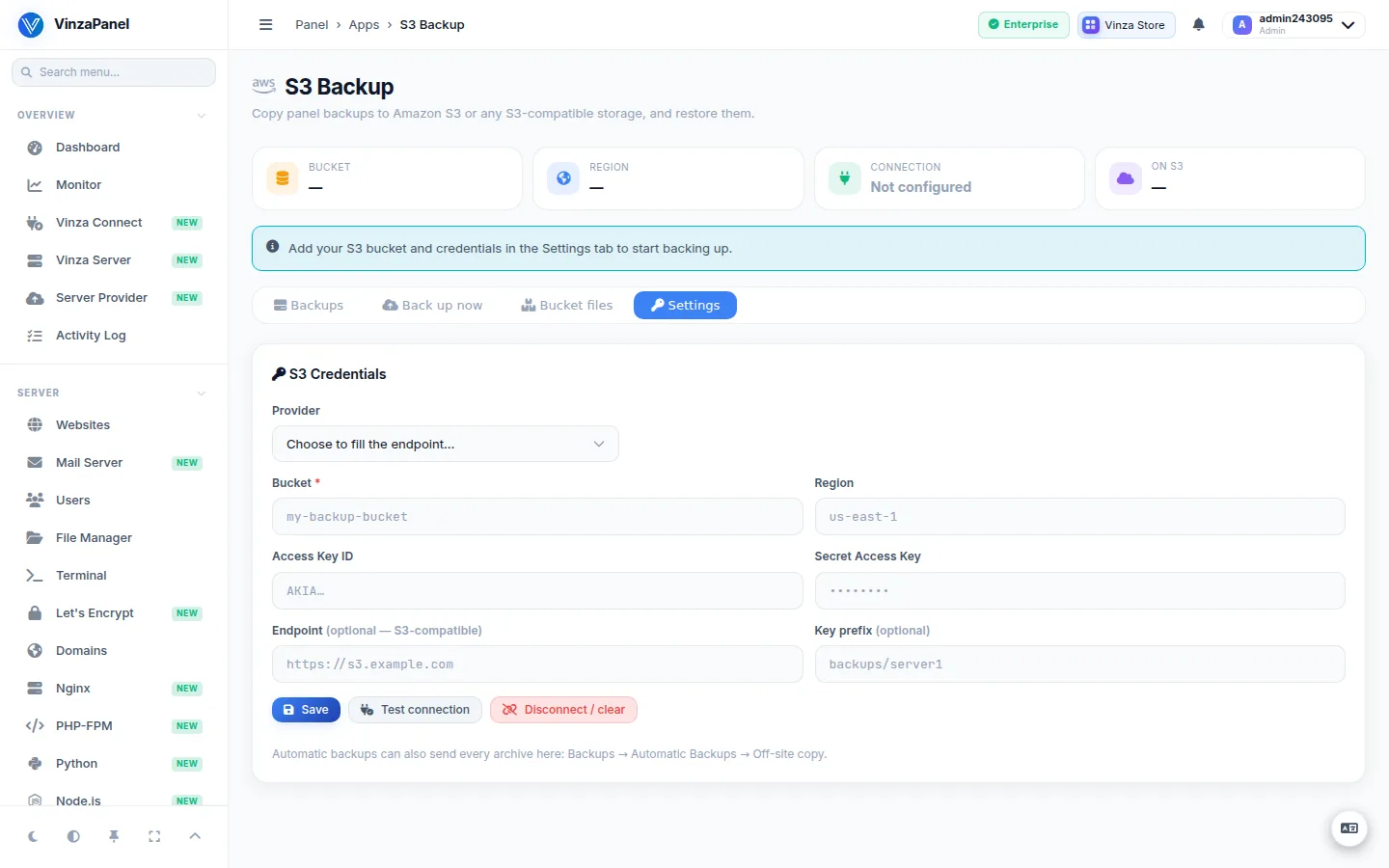
- As an administrator, open S3 Backup → Settings.
- Pick a provider preset (AWS, Cloudflare R2, Wasabi, Backblaze B2, IDCloudHost, MinIO) or enter a custom endpoint, then the bucket, region, key prefix and access keys.
- Click Test connection — it checks list, write, read and delete on the bucket.
- Choose S3 as the off-site destination of a schedule, or use Upload to S3 / Back up now in the app.
Credentials are stored encrypted and never sent back to the browser; the uploaded archives themselves are not encrypted. Website owners can use S3 too, but only within their own prefix, and only administrators see the bucket settings. Bucket files lists objects and restores one into a folder on the server (resumable, checksum-verified, never overwriting an existing file).
Remote Backup (your own computer)
Remote Backup works the other way round: a small desktop app on your computer calls the panel over HTTPS every few minutes and downloads the backups waiting for it, so no public IP or open port is needed on the computer.
- Open Remote Backup and download the app for Windows 10/11, macOS 11+ or Linux.
- Click Add computer → Create key. The connection key is single-use and expires after 15 minutes.
- Open the app on the computer, paste the key and choose the folder for the copies.
- Choose Remote Backup as the off-site destination of a schedule, or send an existing backup from the app's page.
Each archive is checked with SHA-256 after download and resumes if the connection drops. A schedule can keep the last N copies on each computer, or tiered copies: the newest of each of the last days, weeks and months (default 7, 4 and 12). A backup no computer collects within the pickup window (7 days by default) is marked failed.
Restoring from a computer
- Send back in the app returns an archive to the server; the normal Restore button on the Backups page then works again.
- Restore… on a snapshot in the app asks the panel to restore files, databases or both. The backup's owner or an administrator approves or rejects the request on the Snapshots tab (requests expire after 24 hours). Before restoring, the server makes a safety backup, which Undo puts back.
Allow direct restore lets a computer restore without approval. Anyone using that computer could then overwrite your websites and databases with an older snapshot. Leave it off unless you need it.
The app is not code-signed yet: Windows shows an "unknown publisher" warning and macOS asks you to allow it under Privacy & Security the first time.