Updates
Updates
VinzaPanel has two kinds of updates: the panel itself, and the apps you installed from the Vinza Store. Neither is installed automatically — the panel tells you an update is ready, and you decide when to run it.
Updating the panel
1. Notice the update
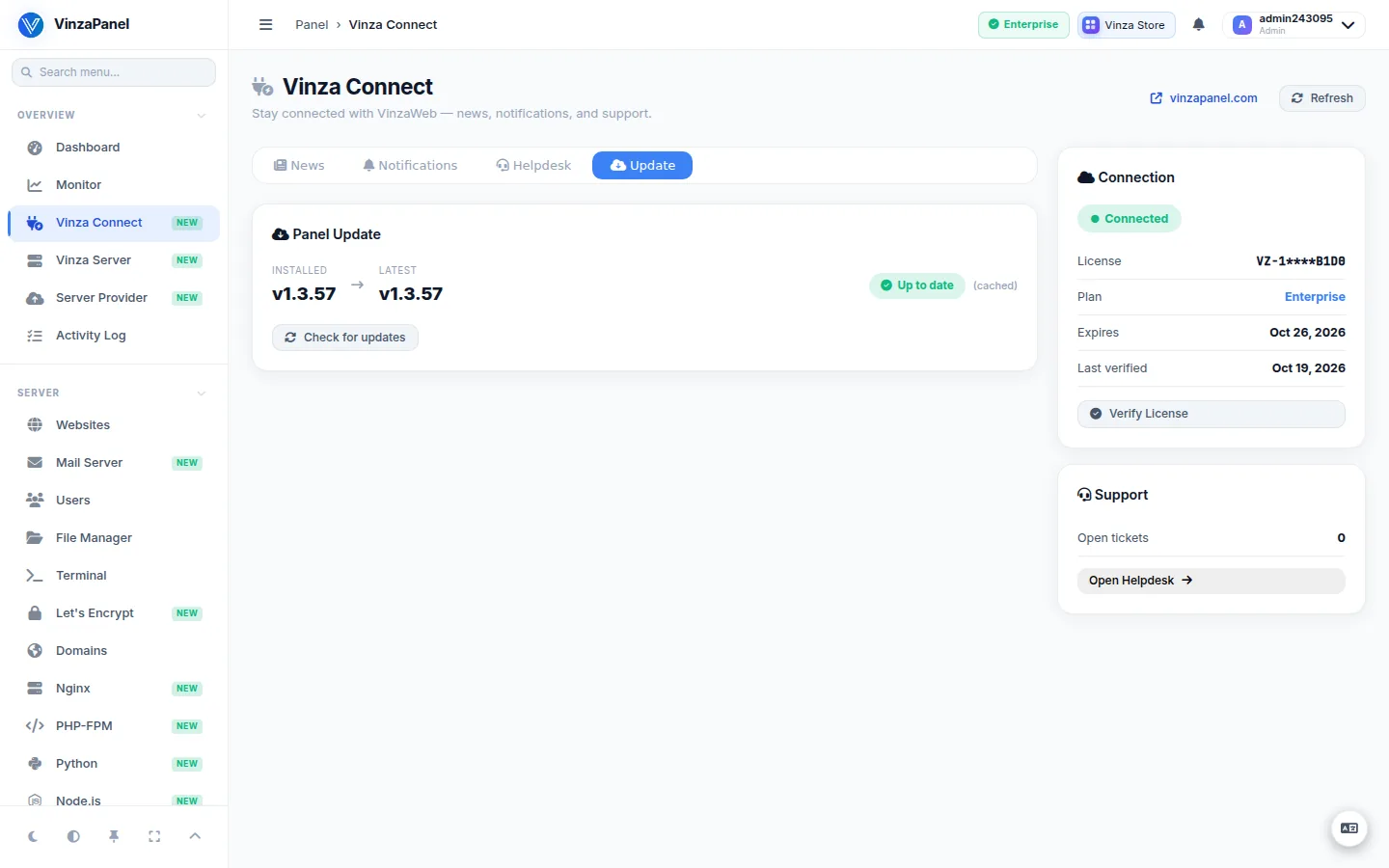
The panel checks the VinzaPanel release feed in the background every 6 hours. When a newer version exists, an update badge appears in the top bar. Click it, or open Overview → Vinza Connect and the Update tab. The Panel Update card shows the Installed and Latest versions; click Check for updates to check right now.
2. Review the checks
Click Install update. Under Before you start the panel runs its checks:
- Release metadata and Release signature — the new release is genuine.
- Disk space — enough room for the old version, the new one and a backup.
- Installation integrity — whether your current files still match the signed release.
- Root agent — reachable; it is required to swap and restart.
It also lists what is kept across the update: .env, .ssh, data/, media/, staticfiles/, venv/, the apps installed from the store and the agent binary. Your websites, databases and mail are not touched.
3. Start the update
Click Start update. A progress bar walks through eight steps: back up the current installation, swap in the new version, carry over configuration and data, install Python dependencies, apply database migrations, collect static files, restart the panel, and wait for it to answer.
The panel restarts during the update and is unreachable for roughly 30–60 seconds. Leave the tab open; it reconnects on its own. Click Show log to follow the full output.
If the new version does not come up, the previous version is restored automatically. Before every update a backup of the installation is saved in /opt/vinzapanel-backups/, and the complete log is in /var/log/vinza-self-update.log.
Nodes
Servers connected with Vinza Server run their own agent. After a panel update, the Agent column in Vinza Server marks nodes whose agent is outdated; use ⋮ → Update agent on each one. The node downloads the new agent from your panel, verifies its checksum and restarts itself.
Updating apps
Open the Vinza Store from the top bar (/apps/). Installed apps with a newer version show Update Available. Click Update (or Update App on the app's detail page) and confirm. The store fetches the latest version and runs its update script; your configuration is preserved.
Built-in parts of the panel (Monitor, File Manager, Components, Terminal, Vinza Connect) are updated together with the panel, not from the store.
Who can update
Panel and app updates are available to administrators who can manage apps. Hosting customers never see update controls.