Mail Server
Mail Server
The Mail Server app turns your VinzaPanel server into a complete email host: Postfix sends and receives mail, Dovecot lets people read it over IMAP or POP3, and Rspamd filters spam. Webmail is included (SnappyMail by default, Roundcube as an alternative). Mailboxes are virtual — they are not Linux accounts.
Install the Mail Server
- Click Vinza Store in the top bar, find Mail Server (Postfix + Dovecot) and click Install.
- The installer sets up Postfix, Dovecot, Rspamd and PHP for webmail, creates the
vmailsystem user and a MariaDB database for mail accounts, and generates DKIM keys. This takes a few minutes. - Open it from Server → Mail Server (
/apps/mail-server/).
Before you start, set the server's identity (domain) in Panel Settings → Server Identity. The mail hostname (HELO), for example mail.example.com, is taken from it.
Step 1: Enable email for a domain
Email domains follow your panel domains: a domain is added to Domains automatically when you create a website, or you add it there yourself. On the Mail Server page you only switch email on and manage its DNS.
- Open the Domains tab (administrators).
- Click Enable email next to the domain.
- The panel writes the MX, A, SPF, DKIM and DMARC records. If the domain's DNS zone is managed in the panel they are added automatically; otherwise click DNS to see the records and add them at your DNS provider.
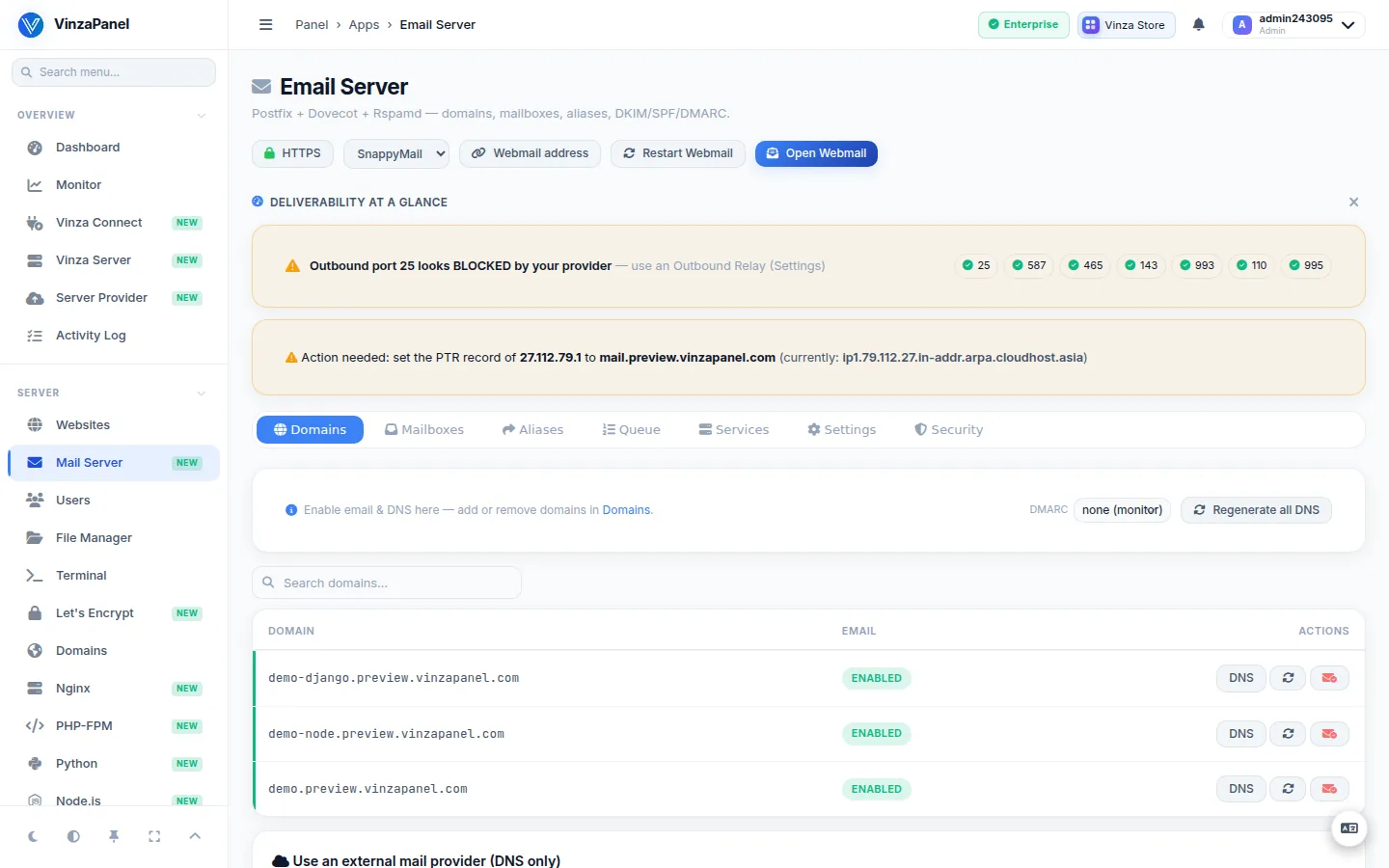
Use Regenerate DNS (or Regenerate all DNS) after changing the DMARC policy or the mail hostname. The DMARC policy for new records is set in the Domains tab: start with none (monitor), then move to quarantine or reject once SPF and DKIM pass.
Step 2: Create mailboxes and aliases
- Open the Mailboxes tab and click Add Mailbox.
- Enter the mailbox name, pick the domain, set a password (Suggest a strong password generates one) and a quota in MB.
- To change a password or quota later, use Edit on the mailbox.
In the Aliases tab, Add Alias forwards one address to one or more destinations (one per line or comma-separated). An alias's destinations can be edited; its source address cannot — delete the alias and add a new one instead.
Mailbox quotas and the number of email accounts follow the owner's hosting plan. Website owners see only their own domains' mailboxes, aliases and queue entries; on a website's page, the Email quick tool opens the Mail Server filtered to that domain.
Step 3: Connect a mail client or use webmail
Each mailbox has a Mail client setup summary with the IMAP, POP3 and SMTP settings for Outlook, Thunderbird or a phone.
| Service | Port | Security |
|---|---|---|
| IMAP (incoming) | 993 | SSL/TLS |
| POP3 (incoming) | 995 | SSL/TLS |
| SMTP (outgoing) | 587 | STARTTLS |
| SMTP (outgoing) | 465 | SSL/TLS |
The username is the full email address. IMAP keeps mail on the server and is the best choice for several devices.
Webmail is served at /vinzamail/ on your server's hostnames (for example https://example.com/vinzamail/). Click Open Webmail in the header. With Roundcube active, the per-mailbox Webmail button logs straight into that inbox without a password; SnappyMail asks for the mailbox password.
- Switch the webmail engine (SnappyMail or Roundcube) from the page header.
- Change the address with Webmail address. The path works on every domain on the server, so choose one your websites don't use. Old
/webmail/links can keep redirecting to the new address. - Enable trusted HTTPS serves webmail with your panel domain's Let's Encrypt certificate.
- Per website you can stop serving webmail and phpMyAdmin under its domain (Edit → Panel web apps on this site).
Settings (administrators)
| Setting | What it does |
|---|---|
| Postfix · TLS Certificate | Enable Let's Encrypt TLS for the mail hostname. The hostname must already point (A record) to this server and port 80 must be reachable. The certificate renews with the others and reloads Postfix and Dovecot. |
| Postfix · Outbound Relay (smarthost) | Send outgoing mail through another SMTP server (your ISP, SendGrid, Mailgun…) — relay host, port (usually 587 or 465), username and password. Strongly recommended when port 25 is blocked or the IP has a poor reputation. |
| Dovecot · IMAP/POP3 Settings | Require encrypted login and the maximum connections per user per IP (10 suits most setups). |
| Adaptive Spam Filtering | Bayesian learning and greylisting in Rspamd. Requires the Redis app. |
| Use an external mail provider (DNS only) | Route a domain's mail to Google Workspace, Microsoft 365 or Zoho instead of local mailboxes. The panel writes MX/SPF/DMARC; add the provider's DKIM afterwards. |
The Services tab shows Postfix and Dovecot status with start, stop and restart, a port check and the mail log. The Queue tab lists waiting messages; you can retry, hold, release or delete them, flush the queue, or delete all deferred mail.
Deliverability Doctor
Open Deliverability Doctor, enter your Email domain (the part after @, not the mail hostname) and click Check Deliverability. It checks:
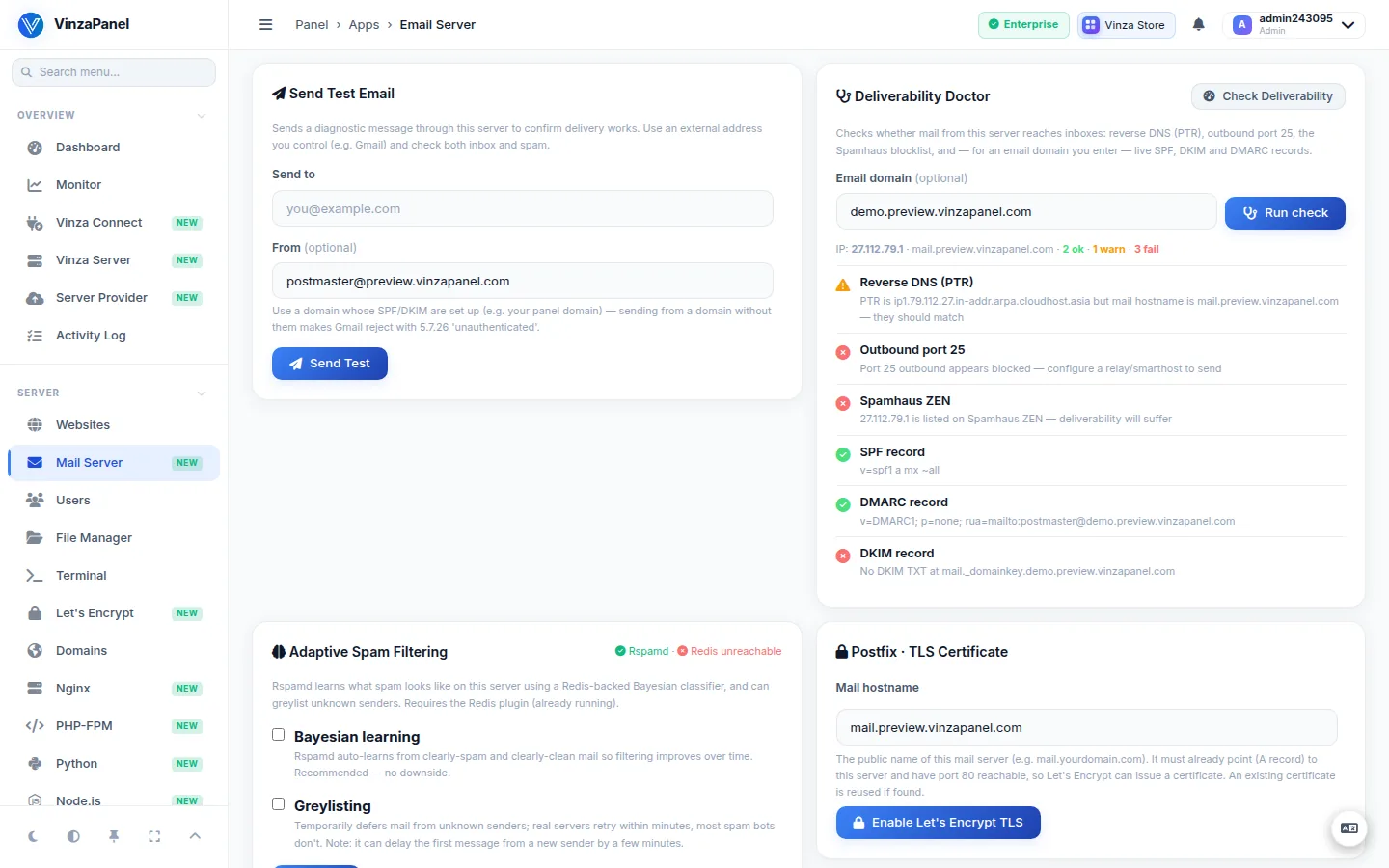
- Reverse DNS (PTR) — must match the mail hostname. PTR is set at your VPS provider, not in the panel; the doctor tells you exactly what to set.
- Outbound port 25 — many clouds block it. If it is blocked, configure an Outbound Relay.
- Spamhaus listing of the server IP.
- The live SPF, DKIM and DMARC records of the domain.
Use Send Test Email to an external address you control (for example Gmail) and check both the inbox and the spam folder. Send from a domain whose SPF and DKIM are set up.
A missing or mismatched PTR record is the most common reason mail is rejected or lands in spam. A new IP also needs time to build reputation — never use it for bulk mail.
Firewall ports
Mail needs ports 25, 465 and 587 (SMTP) and 993 and 995 (IMAPS/POP3S). Also open them in your cloud provider's firewall or security group.
Moving mail between servers
Backup & Restore / Migrate exports one mail domain — accounts, aliases and the mail itself — to a file. Download it on the source server and use Restore from file on the target.