Vinza Store
Vinza Store
Most VinzaPanel features are apps. The Vinza Store is where you browse, install, update, switch off and remove them. Open it with the Vinza Store button in the top bar (it is not in the sidebar); its address is /apps/.
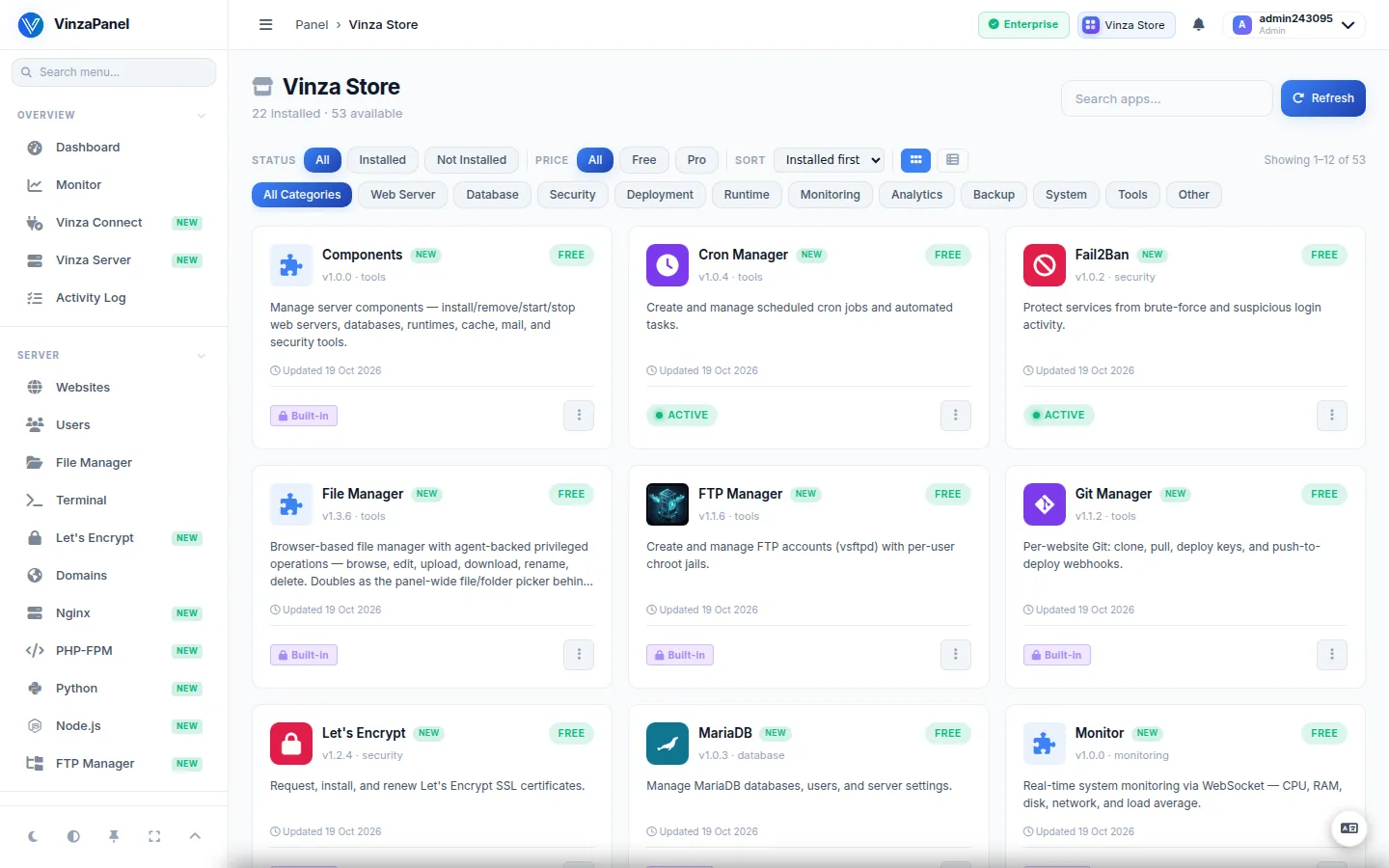
Finding an app
- Search apps… — search by name.
- Category — Web Server, Database, Runtime, Deployment, Security, Backup, Monitoring, Analytics, Tools, System, Other.
- Status — All, Installed, Not Installed.
- Price — All, Free, Pro.
- Sort — Installed first, Name A→Z / Z→A, Category.
- Grid View or Table View, and Refresh to reload the catalogue.
Click an app to open its details page: description, version, author, changelog, the minimum panel version it needs (Min Panel Ver.), apps it Requires or Conflicts with, and the scripts it will run.
Installing an app
- Find the app and click Install.
- Confirm in the dialog. The panel downloads the package and runs its install script.
- Watch the progress in the App Installer Console, which shows the raw installation log.
- When it finishes, the app's page appears in the sidebar section it belongs to.
If an app has structural problems, installation is blocked and the details page lists what is wrong.
Updating, repairing and removing
| Action | What happens |
|---|---|
| Update | Shown when Update Available. Fetches the latest version and runs its update script. Your configuration is kept. |
| Reinstall | Re-runs the installer to repair the app. Data is kept, but service configuration may be reset to defaults. |
| Disable / Enable | Switches the app off without removing it: files, settings and data stay, but it disappears from the sidebar and dashboard and its actions are refused. The Enable dialog lists its system services and can start them again. |
| Uninstall | Removes the app and runs its uninstall script. |
App updates are never installed automatically — you choose when. See Updates.
Apps that are always there
Some apps are part of the panel itself and are always on: Monitor, File Manager, Components, Terminal and Vinza Connect.
Others make up the core hosting stack and are protected — they cannot be uninstalled or disabled: PHP-FPM, MariaDB, Let's Encrypt, phpMyAdmin, Redis, FTP Manager and Git Manager, plus the web server that is currently active.
If the panel's own database runs on PostgreSQL, the PostgreSQL app cannot be uninstalled either — removing it would delete the panel's data.
Switching the web server
VinzaPanel runs exactly one web server: Nginx, Apache2 or OpenLiteSpeed. You pick it in the setup wizard. Web servers cannot be disabled or enabled individually, because two of them would fight over port 80.
To switch, install the web server you want from the store. The store shows Replace active app? and an Install & replace button:
- the current web server is removed,
- the websites on this server are moved across and their vhosts are rewritten from the panel template,
- sites placed on a remote node (Vinza Server) are not affected.
Any vhost you edited by hand is lost when the web server is replaced. Copy your custom rules first and add them back afterwards.
Free and Pro apps
Each app shows a price badge:
| Badge | Meaning |
|---|---|
| Free | Free for everyone, including the Free plan |
| Paid plans | Only available with a paid licence; the tooltip names the plans that include it |
| A price (one-off or per month) | Can be bought on VinzaWeb; Free on higher plans next to it means some plans include it at no extra cost |
| In your plan | Your licence already includes it at no extra cost |
| Purchased | You bought it; the tooltip shows how long your access lasts, and a days left badge appears shortly before it ends |
| Expired | Access has ended. The installed app keeps running, but installing or updating it is blocked until you renew on VinzaWeb |
For apps you can buy, the store offers Purchase on VinzaWeb; for apps included with paid plans, Upgrade plan. Licences are explained in Plans & Pricing.
Protect App Source
On an installed app's details page you can choose Protect App Source: the app's Python source is compiled to a native library on this server and the editable source is removed. It fully applies after the panel restarts.