SSH Hardening
SSH Hardening
SSH is the way into your server when the panel is not enough — and the first thing attackers try. This page shows how to tighten it with the SSH Manager app, how SSH access works for hosting accounts, and how to change the SSH port without locking yourself out.
SSH Manager
SSH Manager is free on every plan, including the Free plan. Install it from the Vinza Store (top bar); it appears under Security → SSH Manager (/apps/ssh-manager/). It has three tabs:
| Tab | What it does |
|---|---|
| Sessions | Who is logged in right now (user, TTY, from, login time), whether sshd is running and its OpenSSH version |
| Hardening | Read and change a small, safe set of /etc/ssh/sshd_config directives |
| Authorized keys | List, add and remove the SSH public keys of any Linux account |
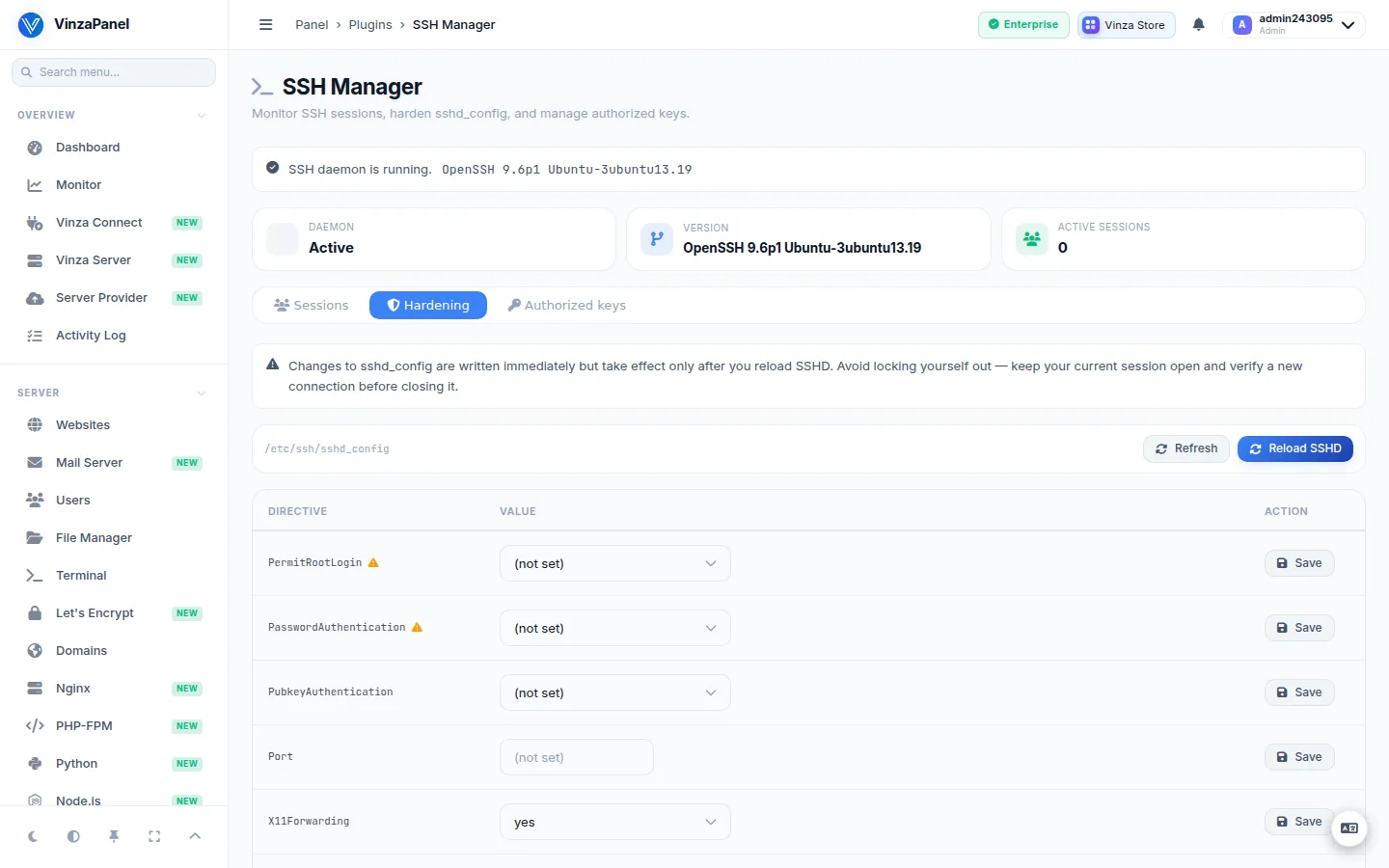
Harden sshd_config
The Hardening tab can change only these directives, each checked against its allowed values:
| Directive | Allowed values | Recommended |
|---|---|---|
PermitRootLogin | yes, no, prohibit-password, without-password | prohibit-password or no |
PasswordAuthentication | yes, no | no, once your key works |
PubkeyAuthentication | yes, no | yes |
Port | 1–65535 | see below |
X11Forwarding | yes, no | no |
MaxAuthTries | 1–100 | a low number, e.g. 3 |
PermitEmptyPasswords | yes, no | no |
Only the global section of the file is edited; anything inside a Match block is left alone. Changes are written immediately but take effect only after you click Reload SSHD.
Before you set PasswordAuthentication no or change the port, keep your current SSH session open, reload, and test a new connection from another terminal. Only close the old session once the new one works.
Add an SSH key
- On your computer, create a key if you don't have one:
ssh-keygen -t ed25519. SSH Manager does not generate key pairs for you. - Open the Authorized keys tab, enter the Target user (the Linux username) and click List keys.
- Paste a single public key (for example the contents of
~/.ssh/id_ed25519.pub) and click Add key.
Supported key types are ed25519, RSA, DSA, ECDSA and the FIDO sk- variants. Options and forced commands (such as command=) are not accepted. Keys are shown with their SHA-256 fingerprint; Remove key deletes one.
Hosting users who open SSH Manager see a self-service view limited to their own account's keys.
SSH for hosting accounts
Every panel account has a Linux user whose password is the panel password. Whether that user may log in over SSH (and SFTP) is decided by its hosting plan's SSH switch: without it, the account's login shell is set to /usr/sbin/nologin, which blocks password and key logins alike. Turning SSH on or off in a plan re-applies it to every account on that plan. See Hosting Plans.
Changing the SSH port
SSH Manager only edits the configuration — it does not open firewall ports. To move SSH to another port:
- Open the new port in your firewall first: Management → Firewall (UFW), or the Ports tab of Sentinel CSF. Also check your cloud provider's firewall or security group.
- In SSH Manager → Hardening, set
Portto the new value and click Reload SSHD. - Test from a new terminal:
ssh -p 2222 root@YOUR_SERVER_IP - When it works, close port 22 in the firewall.
Pair SSH hardening with the sshd jail of Fail2Ban — see fail2ban Configuration.