Firewall & Sentinel CSF
Firewall & Sentinel CSF
VinzaPanel gives you two ways to control which ports are open on your server:
- Firewall (built in, sidebar Management → Firewall,
/firewall/) — a simple page on top of UFW. This is what a fresh install uses. - Sentinel CSF (optional app from the Vinza Store, sidebar Security → Sentinel CSF,
/apps/csf/) — Sentinel is the actively maintained, drop-in fork of ConfigServer Security & Firewall. It keeps the samecsfcommand,lfddaemon and/etc/csflayout, and adds the Login Failure Daemon, temporary blocks and connection statistics.
Use one or the other: Sentinel CSF replaces UFW.
The built-in Firewall (UFW)
The installer enables UFW and opens these ports:
| Port | Used for |
|---|---|
22 | SSH |
2711 | The panel itself |
80, 443 | Websites (HTTP / HTTPS) |
53 | DNS |
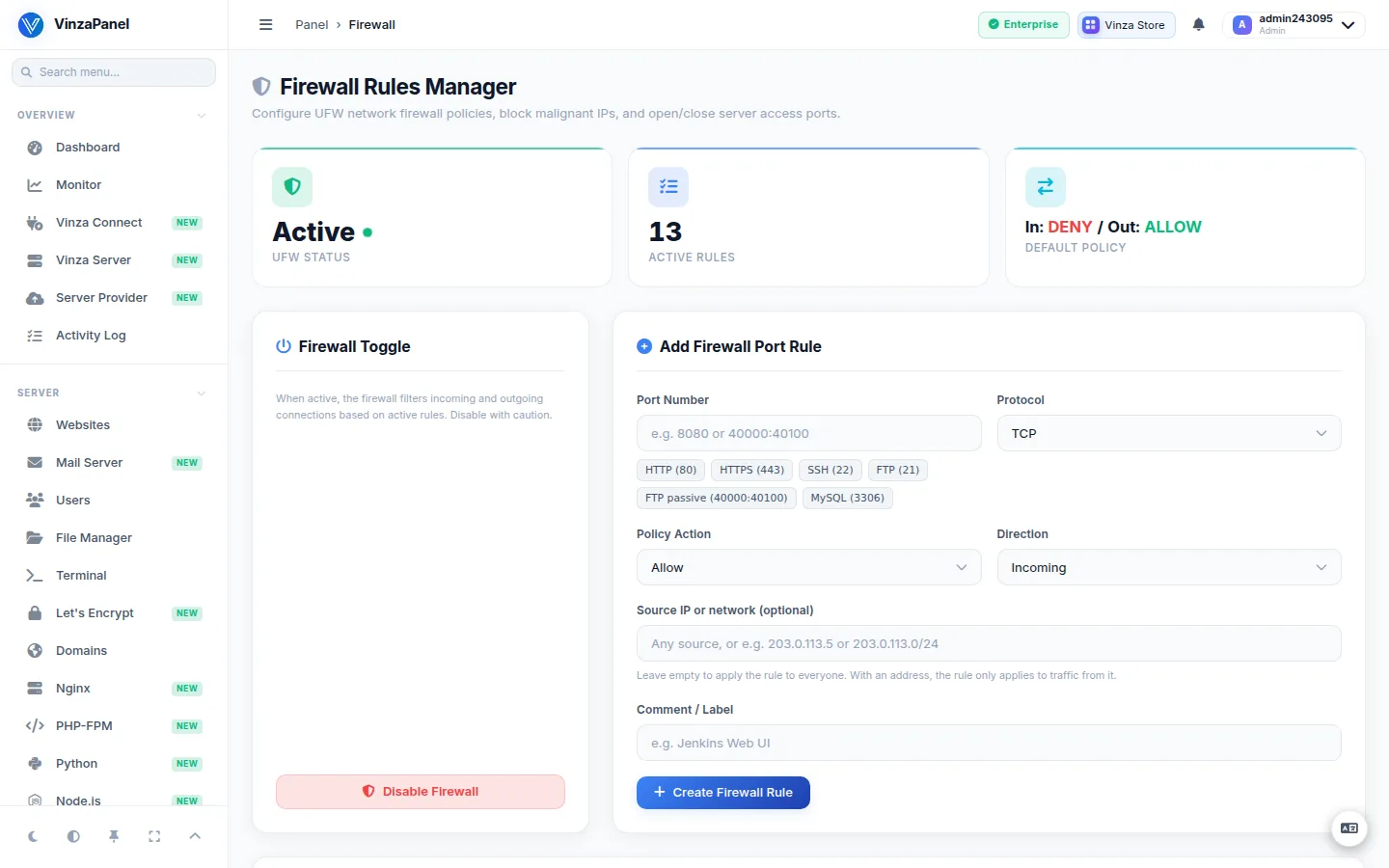
Open or block a port
- Go to Management → Firewall.
- In Add Firewall Port Rule, enter the Port Number, choose the Protocol (TCP or UDP), the Policy Action (Allow or Deny) and the Direction (Incoming or Outgoing).
- Add a Comment / Label so you remember why the rule exists, then click Create Firewall Rule.
Use the search box and the action, direction and protocol filters to find a rule; Remove deletes it. Edit comment changes only the label — the UFW rule itself is not touched.
Rules set outside the panel
Rules that UFW enforces but that were not created on this page — the installer's ports, ports opened by apps, or a ufw allow you typed yourself — are listed under Rules set outside the panel. They are shown for reference; manage them with ufw on the command line.
Turning UFW on or off
The Firewall Toggle card shows the UFW status and lets you Enable Firewall or Disable Firewall.
Disabling the firewall leaves every listening service reachable from the internet. Only do it briefly, for example while troubleshooting.
Sentinel CSF
Install
- Click Vinza Store in the top bar and open Sentinel CSF.
- Click Install. The installer downloads a pinned Sentinel release, checks its SHA-256 checksum (and refuses to continue on a mismatch), installs the Perl modules it needs and configures CSF.
- Open Security → Sentinel CSF.
On the first install the port lists are built from what your server actually uses:
- TCP in: 20, 21, 22, 25, 53, 80, 443, 465, 587, 993, 995, plus the port(s) your SSH daemon really listens on, the panel port (2711 by default) and every TCP port UFW was allowing.
- UDP in: 20, 21, 53, plus the UDP ports UFW was allowing.
- TCP out: CSF's defaults plus 465 (SMTPS, for a mail relay).
- On servers with IPv6, the same lists are applied to IPv6.
If UFW was active, it is disabled — CSF now manages the firewall, and the rules on the built-in Firewall page no longer apply. Uninstalling Sentinel CSF turns UFW back on.
Leave Testing mode
CSF is installed in Testing mode: its rules are cleared every 5 minutes, so the firewall is not protecting you yet. The sidebar shows a TEST badge until you switch.
- On the Overview tab, review the Ports lists (TCP_IN, TCP_OUT, UDP_IN, UDP_OUT).
- Make sure your SSH port and the panel port are in TCP Incoming.
- Click Enable Production Mode.
If your SSH port or the panel port is missing from TCP_IN when you leave Testing mode, you will lock yourself out. Keep an SSH session open and test a new connection before closing it.
What you can do on the page
| Tab | What it does |
|---|---|
| Overview | Firewall state, LFD daemon state, Sentinel version, Service Control (Start, Restart, Reload, Flush Rules) |
| IP Management | Permanent Allow (csf.allow) and Block (csf.deny) with an optional comment; Temp Allow / Temp Deny for a number of minutes; list and Unblock active temporary blocks |
| Ports | Edit the four TCP/UDP in/out lists (comma-separated, ranges allowed) and Save & Apply, or use Quick Add / Remove Port to open or close a single port |
| Intrusion & Traffic | LFD block events, a tail of lfd.log (load 200 lines) and top connections |
| Config Editor | Edit csf.conf directly. A backup is saved before every write, and saving restarts CSF automatically. |
Before experimenting with blocks, add your own office or home IP with Allow on the IP Management tab so a mistake cannot shut you out.
Related pages
- fail2ban Configuration — automatic bans for brute-force logins
- SSH Hardening — change the SSH port safely