Deploying Node.js Apps
Deploying Node.js Apps
The Node.js Deploy app runs your Node.js application as a systemd service under the site owner's Linux user and puts your web server (Nginx, Apache2 or OpenLiteSpeed) in front of it as a reverse proxy. Node.js versions are managed with nvm.
Before you start
- Install Node.js Deploy: tick it in the first-login setup wizard, or install it from the Vinza Store (top bar). It then appears as Server → Node.js (
/apps/node-deploy/). - Deploying and managing Node.js versions are administrator tasks.
Node.js apps run on the panel's own server. Remote nodes (see Vinza Server) host PHP and static sites only, so the Node.js option is disabled when a remote node is selected.
Step 1: Create the website
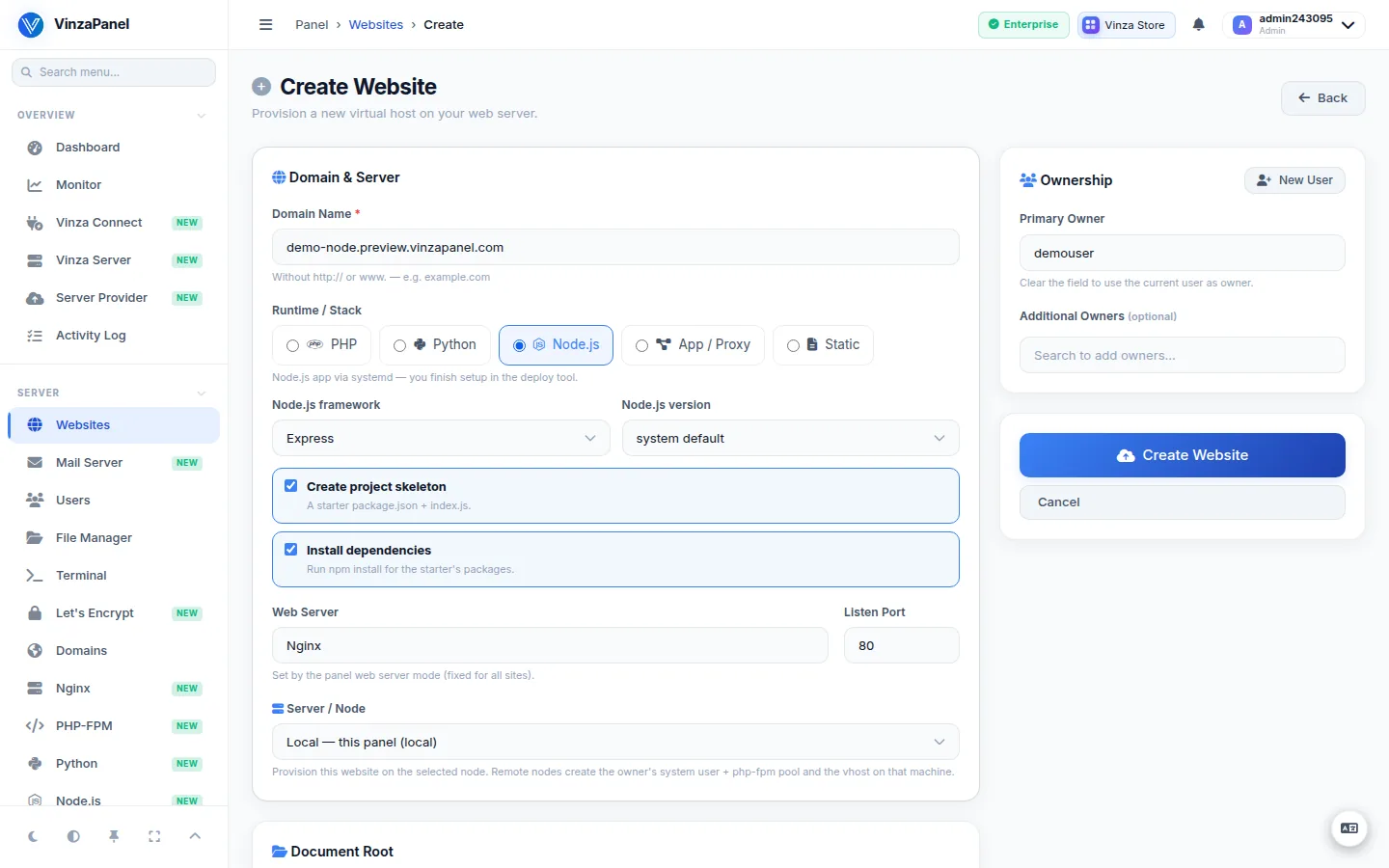
- Go to Server → Websites and create a new website with the Node.js runtime.
- Pick the Node.js framework for the optional starter project — Express, Fastify or Plain (http) — and the Node.js version (or the system default).
- Tick Create project skeleton for a starter
package.json+index.js, and Install dependencies to runnpm installfor it. Existing code is never overwritten. - Save. The site shows a holding page until the app is deployed.
Step 2: Upload your code
Put your app in /home/<user>/web/<domain> with Git Manager, the File Manager, or SFTP/FTP. Your app must listen on the port given in the PORT environment variable:
const port = process.env.PORT || 3000;
app.listen(port, '127.0.0.1');
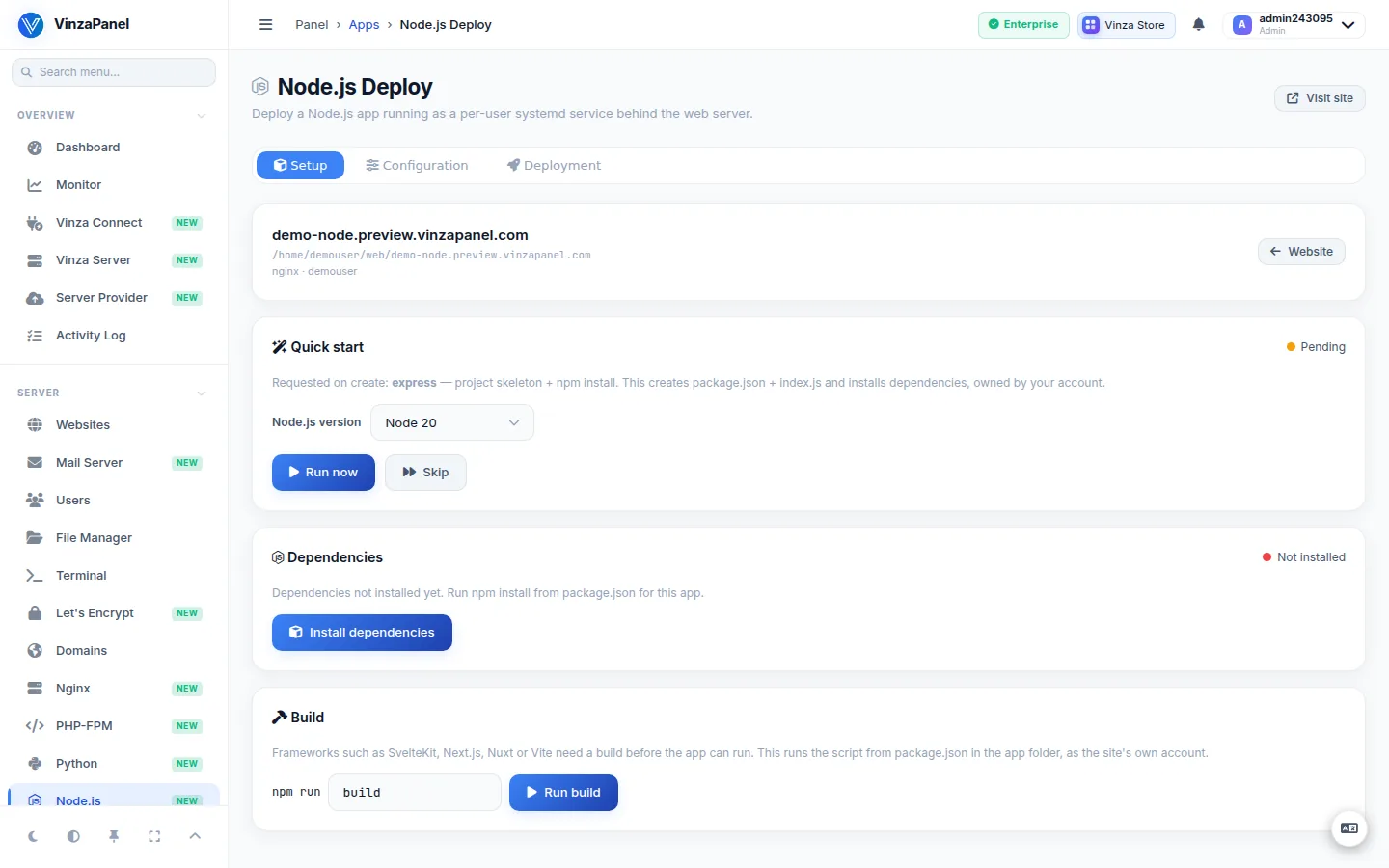
Open the site's deploy page — Websites → your site → Advanced → Node.js Deploy — and under Dependencies press Install dependencies to run npm install from your package.json. You can also add single packages there. If your project has a build step, Run build runs npm run build as the site owner.
Step 3: Deploy
- Check the Entry point (leave it blank to auto-detect) and pick the Node.js version.
- Leave the Port on auto to get a free port in the 8300–8399 range.
- Press Preview service to see the systemd unit, then Deploy.
The unit sets PORT and NODE_ENV=production, is written to /etc/systemd/system/vp-node-<domain>.service (every character that is not a letter or digit becomes a dash), and is enabled and started. The web server vhost is switched to proxy to it.
Running the app
- Start, Stop, Restart and Reload from the deploy page; Logs shows the app's output.
- After pulling new code, install dependencies or run the build if needed, then restart.
- Edit settings reopens the deploy form with the current port, entry point and Node.js version. Re-deploying with the port on auto keeps the current port; tick Pick a new free port instead for a new one.
- Static & Media lets the web server serve static and uploaded files directly: point each URL prefix at its folder and press Save aliases. Keep Directory indexing off for production.
- Remove deletes the systemd service and the web-server config of the deployment. Deleting the website removes its service automatically.
Node.js versions
On Server → Node.js, Node.js runtimes lists the versions installed via nvm (under /opt/nvm). Install a version offers the LTS majors 22, 20 and 18. Apps pick their version at deploy time; apps using a removed version must be redeployed on another one.