Creating & Managing Databases
Creating & Managing Databases
Most websites need a database. In VinzaPanel each database comes with its own dedicated database user, belongs to a panel user (its owner) and can be linked to a website. Everything below happens on Databases in the sidebar (/databases/).
Create a database
- Go to Databases and click Add Database.
- Choose the Primary Owner (administrators; other users always create databases for themselves).
- Pick the Database Engine. Only engines installed on the owner's server are listed.
- Type the Database Name and the Database User — suffix only. The owner's system username plus an underscore is put in front automatically, so
shopfor useralicebecomesalice_shop. - Keep the pre-generated password or type your own (at least 8 characters).
- Optionally choose a Linked Website so the database shows up on that website's page and is included in Website and DB backups.
- Click Create.
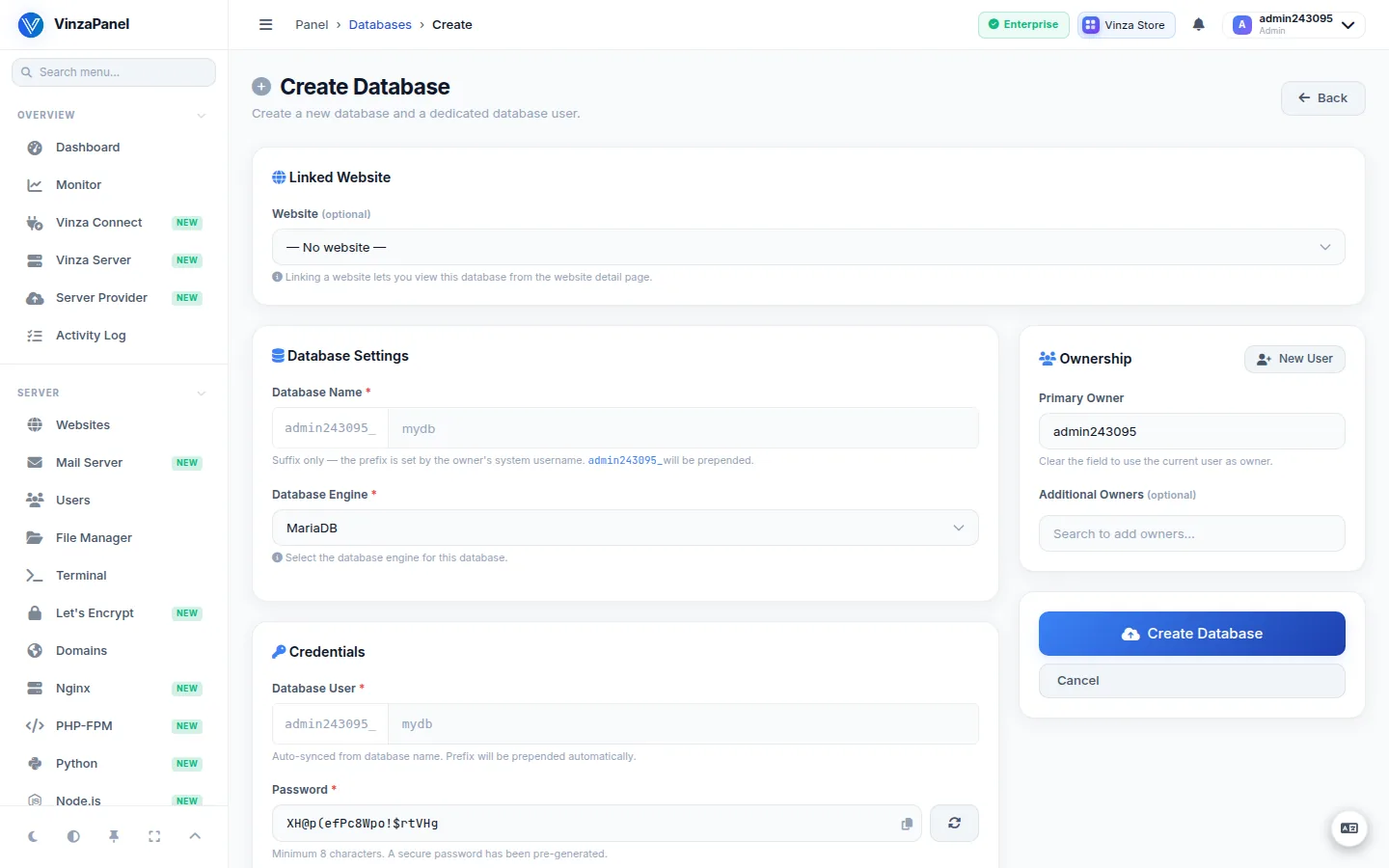
The database name, username and engine cannot be changed after creation. The number of databases a user may create is limited by their hosting plan and by your panel licence; the page shows the plan quota and says when the limit is reached.
The database page
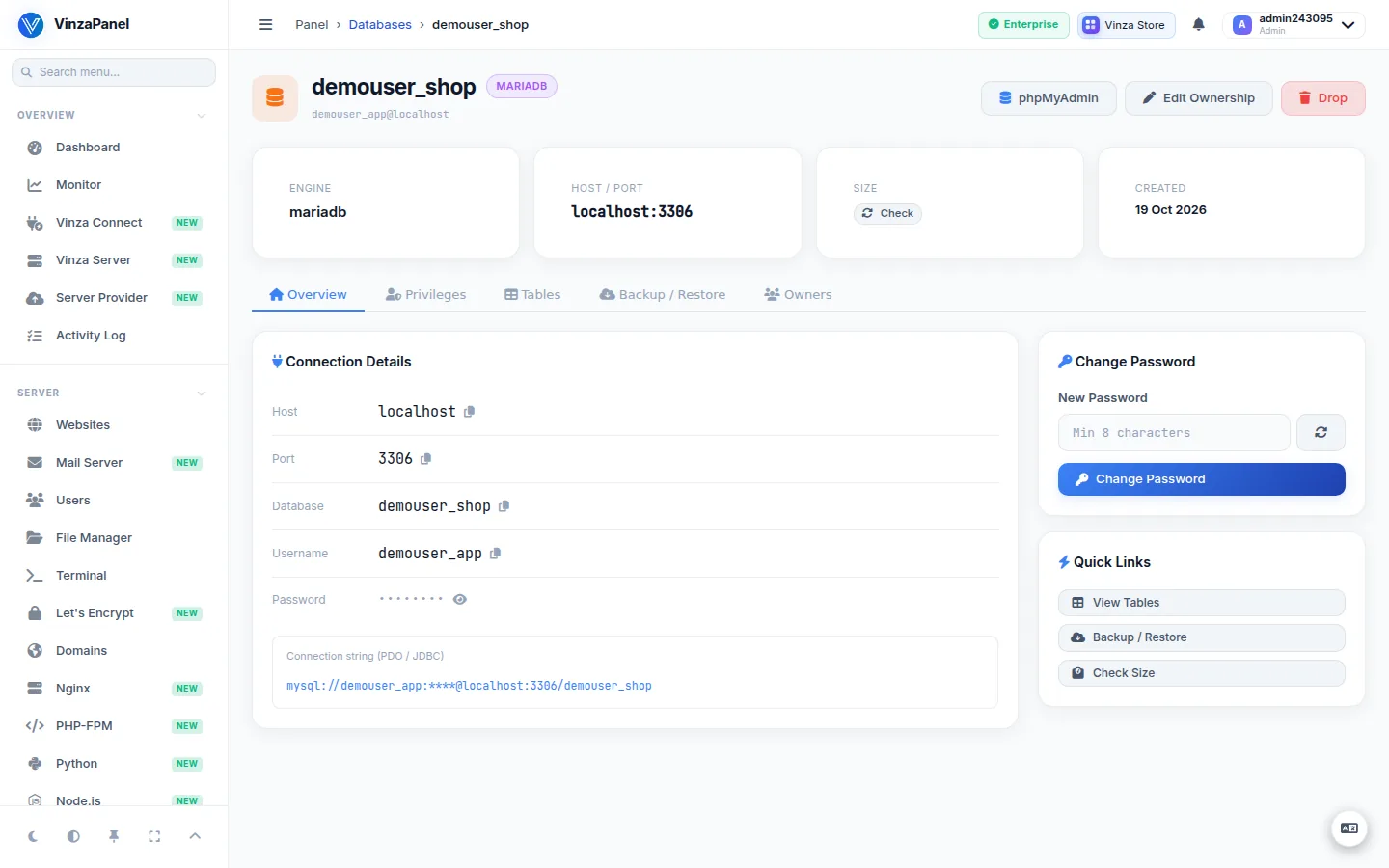
Click a database to open its detail page. From there you can:
- See the Connection Details — host, port, username, password (reveal or copy) and a connection string.
- Change Password — sets a new password for the database user. Remember to update your application's configuration.
- User Privileges — tick the privileges the database user has and click Update Privileges. MySQL/MariaDB offers SELECT, INSERT, UPDATE, DELETE, CREATE, DROP, ALTER and INDEX; PostgreSQL offers its own list.
- View Tables and Check Size.
- Edit Ownership — change the primary owner, add additional owners, or link a different website.
- Open phpMyAdmin already signed in to this database (MySQL/MariaDB only).
- Drop Database — permanently deletes the database, its user and all data.
Import and export
The Backup / Restore card on the database page works for MySQL and MariaDB databases:
- Export downloads a full
mysqldump(--single-transaction) as.sqlor.sql.gz. - Import runs an uploaded
.sqlor.sql.gzfile (max 50 MB) against the database.
Import executes every statement in the file, so existing data may be overwritten. Export first if you might need to go back. For larger dumps and scheduled copies, use Backups.
Keeping the list in sync
If databases are created or dropped outside the panel (for example from the command line), administrators see Databases out of sync with the engine on the Databases page. Reconcile now adopts the unmanaged databases (marked Imported — set their password afterwards so backups and phpMyAdmin sign-in work) and flags panel entries whose database no longer exists (Orphan). Nothing is deleted; clean up orphan entries with Manage orphans.