Activating Your License
Activating Your License
After you buy a plan, activating it takes one minute: paste the key into the panel and let it verify with vinzapanel.com. This page also explains how the license is bound to your server and what happens when you move to a new one.
1. Find your license key
Sign in at vinzapanel.com → My Licenses. Open the license to see its key; it looks like VZ-XXXXXXXXXXXXXXXX-XXXXXXXXXXXXXXXX-XXXXXXXXXXXXXXXX-XXXXXXXXXXXXXXXX.
2. Enter it in the panel
- Log in to your panel as an administrator.
- Open Administration → Panel License (
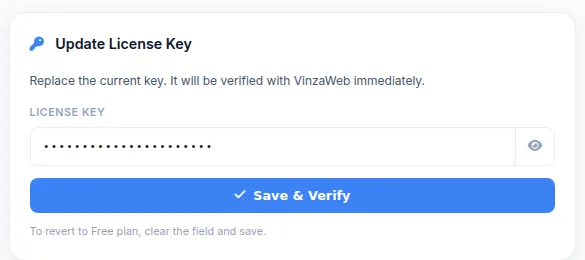
/license/). - In the Update License Key card, paste the key.
- Click Save & Verify.
You will see Key saved — verifying with VinzaWeb… and then License verified. The Current Plan card switches to your plan and the Server Limits update right away — no restart needed.
If you see Saved but verification failed, the key was stored but not accepted. Check that the key is complete, that the license is active in your account, and that the server can reach vinzapanel.com over HTTPS (the VinzaWeb Connection card on the same page shows Connected or Unreachable).
How binding works
On the first verification the license is bound to your server's public IP address and its hardware UUID. This applies to every plan. One license runs one panel.
- Same machine, new IP (for example a DHCP change): recognised by the hardware UUID and accepted automatically. It does not use up a move.
- New machine: when a different server verifies the key, the license moves to it automatically and one move is counted. The previous server stops being licensed.
- The number of moves is limited per license. IP Changes Left on the Panel License page shows remaining / maximum. When none are left, verification is refused with Server migration limit reached; contact support to reset it.
Moving to a new server
- Install VinzaPanel on the new server (see the Installation Guide).
- Open Administration → Panel License on the new panel and activate the same key with Save & Verify.
That is all: the license follows you. If you prefer to point it at the new IP first, your license page on vinzapanel.com (vinzapanel.com/panel/my/licenses/<id>/) has a change IP form; that also counts as one move.
Staying verified
The panel re-verifies its license in the background; it does not call vinzapanel.com on every page. If vinzapanel.com cannot be reached, the panel keeps working on its last verified license for a grace period of 12 hours, then shows a license notice until it can verify again.
Expired or suspended licenses
When a license expires or is suspended, administrators see a license page in the panel instead of the usual screens, with a field to enter a valid key. Renew in your vinzapanel.com account or enter another key. Your websites are served by the web server, not by the panel, so they keep running.
To go back to the Free plan on purpose, clear the key field on the Panel License page and save.