Creating Websites
Creating Websites
A website in VinzaPanel is a domain with its own document root, web server configuration (virtual host), logs and — for PHP sites — its own PHP-FPM pool running as the site owner. You manage them all under Server → Websites (/websites/).
Before you start
- A web server must be installed (Nginx, Apache2 or OpenLiteSpeed — chosen in the setup wizard). Without one, Websites asks you to install one from the Vinza Store.
- Decide which user will own the site. Administrators can create a site for any user; a regular user creates sites for their own account.
- The owner's hosting plan must have room for another website (see Hosting Plans).
Step 1: Open the form
Go to Websites and click Add Website.
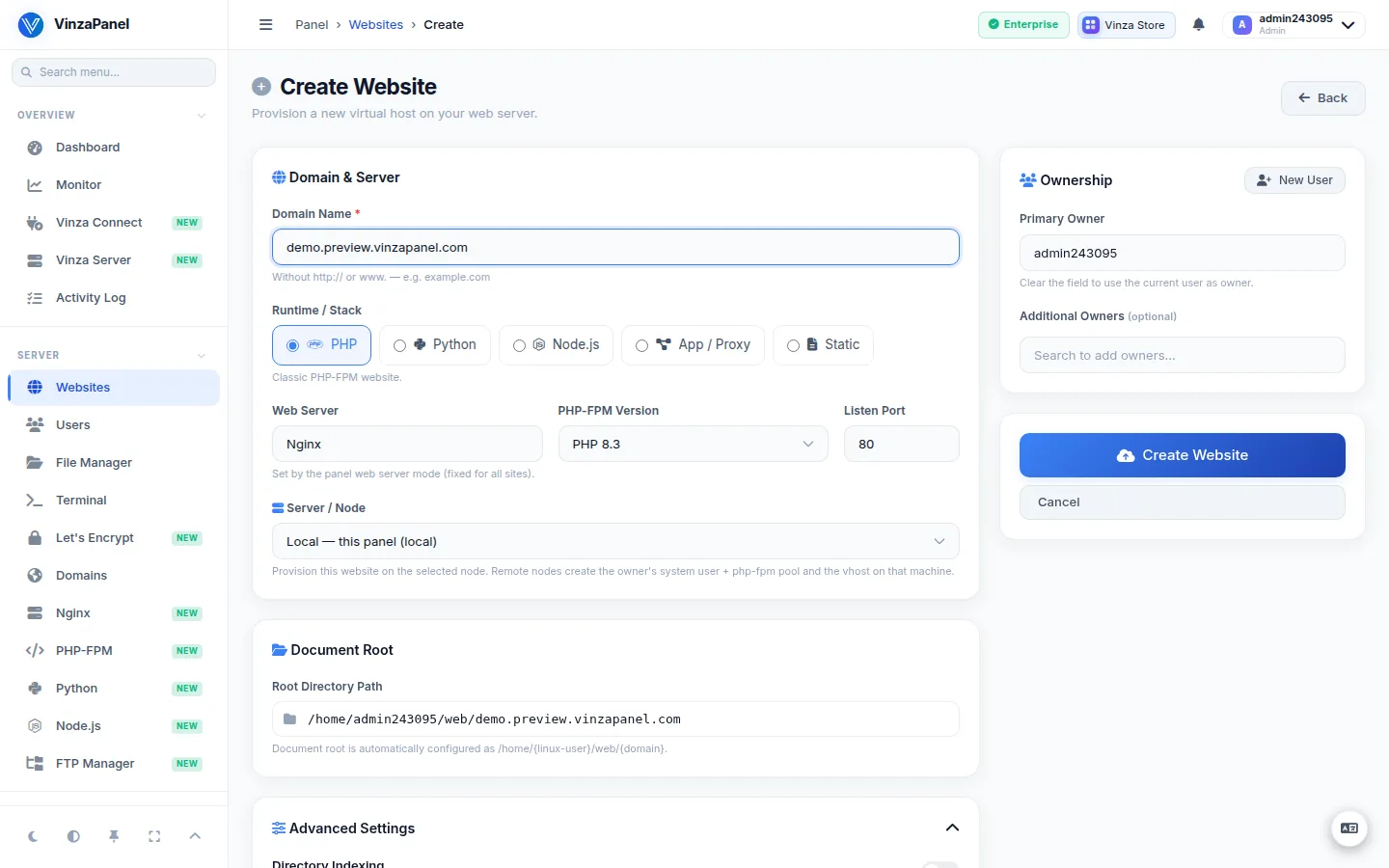
Step 2: Fill in the details
| Field | What to enter |
|---|---|
| Domain Name | The domain without http:// or www., e.g. example.com. It must have a valid top-level domain and cannot be changed later. |
| Runtime / Stack | PHP (classic PHP-FPM site) or Static (HTML/CSS/JS only) are always available. Python, Node.js and Go appear when their deploy app is active, and App / Proxy reverse-proxies to an app you run yourself on a local port. The stack cannot be changed after creation. |
| PHP-FPM Version | One of the PHP versions installed on the server (PHP sites only). |
| Primary Owner (admins) | The account that owns the site. Leave empty to own it yourself. Admins can also add Additional Owners. |
| Server / Node (admins, multi-server) | Create the site on a connected node instead of this panel. Remote nodes host PHP and Static sites only. |
| Advanced Settings | Listen port, Directory Indexing (off by default) and Gzip Compression (on by default). |
The web server is not chosen per site: every site uses the server-wide web server.
Step 3: Create
Click Create Website. VinzaPanel then:
- creates the document root at
/home/<user>/web/<domain>with a default landing page; - creates (or reuses) the owner's PHP-FPM pool for the chosen PHP version;
- writes and enables the virtual host and reloads the web server;
- adds the domain to Domains if it is not there yet.
For Python, Node.js and Go sites you are taken straight to the matching deploy page to finish setting up the app.
Step 4: Point DNS and add HTTPS
Create an A record for the domain (and www, if you use it) pointing to the server's IP. The site's Overview tab shows whether the domain already points to this server. Once it does, click the SSL card to issue a free Let's Encrypt certificate — see SSL & HTTPS with Let's Encrypt.
If a preview base is configured in Panel Settings, each website shows a Preview link that works before the real domain points here — handy while you migrate a site.
Managing a website
Click a domain in the list to open its page. The tabs are:
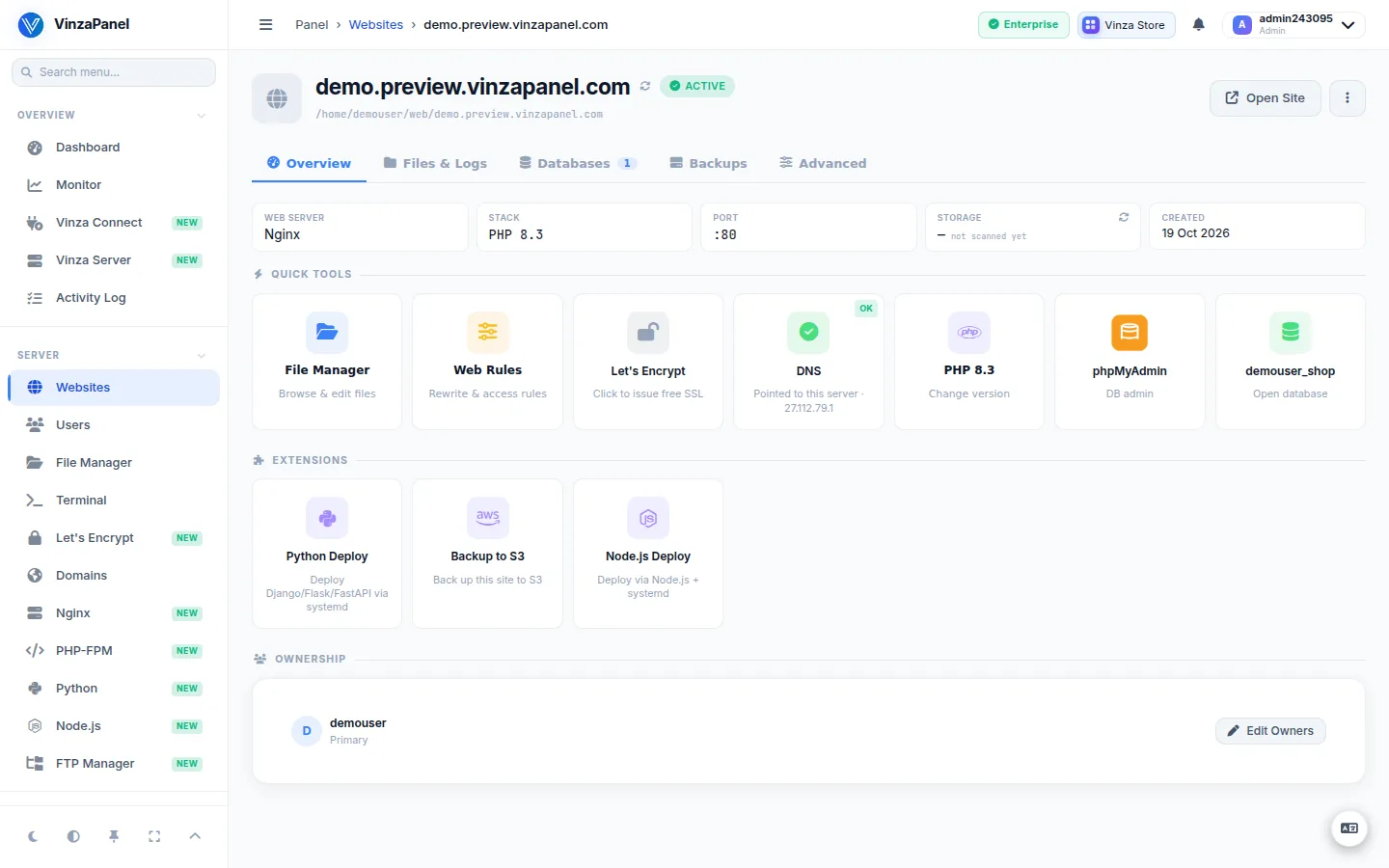
- Overview — stack, web server, port, SSL and DNS status, storage used, owners, and quick tools (File Manager, App Installer, database admin, email).
- Databases — the databases linked to this site; create a new one from here.
- Files & Logs — File Manager, access and error logs, the vhost configuration (read-only), Web Rules, and Create Index.html to write the default landing page.
- Backups — Backup Now, backup history, and an automatic schedule (daily, weekly, monthly or yearly, with “keep last N”).
- Advanced — change the PHP version, Git Manager, and Fix ownership (resets the home directory to
owner:www-data).
Use Edit to change the document root, PHP version, owners, Domain Aliases (extra hostnames for the same site, one per line) and Panel web apps on this site (whether /phpmyadmin/ and webmail are served under this domain).
Disabling and deleting
- Disable takes the site offline without removing anything; Enable brings it back.
- Delete removes the web server configuration and the auto-created domain record. Files and databases are kept unless you tick Also delete files or Also delete databases.
Also delete files permanently removes the document root and log files. Take a backup first if you might need them.
Sites out of sync
If a vhost exists on the web server but not in the panel (or the other way round), Websites shows a Sites out of sync with the web server notice. Reconcile now adopts vhosts found on disk (marked Imported — check their document root), flags panel entries whose vhost is gone (Orphan) and corrects the recorded web server. Nothing is deleted; use Manage orphans to clean up.
Common errors
| Message | What to do |
|---|---|
| Domain “…” already exists | The domain (or an alias of another site) is already in use on this panel. |
| Limit reached: owner plan “…” is limited to N websites | Move the owner to a larger plan, or remove a site. |
| Licensed limit reached | Your licence plan caps the number of websites on this server; upgrade the licence. |
| The site root must be inside your home directory | Regular users can only use a document root under their own /home/<user>/. |